"Disk is likely to fail soon" SMART error
Hi I am facing th "DISK IS LIKELY TO FAIL SOON (41° C / 106° F)" issue.
My laptop is overheated. Currently i am using the coolpad for bringing down the heating issue.
My laptop battery is also dead because of overheating my laptop got shutdown when i unplug the charger.
But i am worried about disk failing message. Please help.
5 Answers
The short answer is, "No."
This is the longer answer:
During the process of asking your question, there was this link in the sidebar. There's a section about keeping an open mind. Sadly, there's no "good" answer for this. Sorry about that, but it is beyond our control.
S.M.A.R.T. stands for Self-Monitoring, Analysis and Reporting Technology and reports disk health. It's not 100% accurate, but it is a very useful reporting tool.
Your disk is almost certainly going to die soon. If it has important data, you are going to lose that data - unless you've backed it up. If you have important data on that disk, back it up now. Do not hesitate, or you will end up losing it when the disk does fail.
SMART can't know the exact moment of failure. It can only tell you that it's going to fail. It is telling you that.
What you should do is replace the drive as soon as possible. Until you get your data backed up, you should avoid using anything that uses the hard drive. While waiting, you can decide to use a Live USB instance of Ubuntu and disconnect your hard drive in the interim.
Every read/write operation on your drive is going to move your point of failure closer. Every power on operation is going to move your point of failure closer.
There is nothing that you can do to stop this. Your only recourse is to back your data up, replace the disk, move your backed up data to the new disk, and to keep on truckin' on. Your disk will fail. It will fail soon. The more you use it, the more probable the failure and irrevocable loss of data.
If you have vital data and it does fail, there are data recovery experts that can disassemble drives and recover them, more so for spinning platter drives, but that is extremely expensive and often results in only partial recovery. To avoid any of this, backup your data (hoping that it doesn't fail while doing so), and move on. Disks have a lifespan, it is variable, and disk death is a certainty.
Again, time is of the essence. Doing this as soon as you can makes the outcome more likely to be favorable. If you must wait to do this, I'd highly recommend using a live boot USB/optical disk and not mounting the drive during the live sessions. If possible, I'd even disconnect the drive physically.
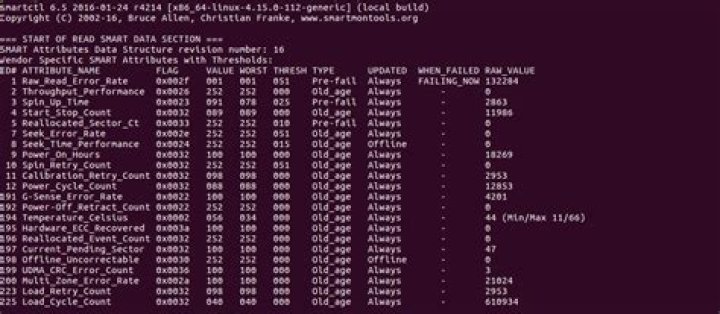
1You have some potentially bad blocks on the disk that have not yet been remapped. This can be seen with the Current_Pending_Sector count of 47. You also have read errors.
First we fsck the drive to test/repair the file system. Then we bad block the disk to map out potentially bad sectors. If this works, you may get a little more life from the drive. If this fails, then it's time to replace the drive.
Note: The temperature reading is fine.
Note: The battery and/or charger need replacements.
fsck
- boot to a Ubuntu Live DVD/USB in “Try Ubuntu” mode
- open a
terminalwindow by pressing Ctrl+Alt+T - type
sudo fdisk -l - identify the /dev/sdXX device name for your "Linux Filesystem"
- type
sudo fsck -f /dev/sdXX, replacingsdXXwith the number you found earlier - repeat the
fsckcommand if there were errors - type
reboot
bad blocking
Note: do NOT abort a bad block scan!
Note: do NOT bad block a SSD
Note: backup your important files FIRST!
Note: this will take many hours
Note: you may have a pending HDD failure
Boot to a Ubuntu Live DVD/USB in “Try Ubuntu” mode.
In terminal...
sudo fdisk -l # identify all "Linux Filesystem" partitions
sudo e2fsck -fcky /dev/sdXX # read-only test
or
sudo e2fsck -fccky /dev/sdXX # non-destructive read/write test (recommended)
The -k is important, because it saves the previous bad block table, and adds any new bad blocks to that table. Without -k, you loose all of the prior bad block information.
The -fccky parameter...
-f Force checking even if the file system seems clean. -c This option causes e2fsck to use badblocks(8) program to do a read-only scan of the device in order to find any bad blocks. If any bad blocks are found, they are added to the bad block inode to prevent them from being allocated to a file or direc‐ tory. If this option is specified twice, then the bad block scan will be done using a non-destructive read-write test. -k When combined with the -c option, any existing bad blocks in the bad blocks list are preserved, and any new bad blocks found by running badblocks(8) will be added to the existing bad blocks list. -y Assume an answer of `yes' to all questions; allows e2fsck to be used non-interactively. This option may not be specified at the same time as the -n or -p options.first do not do anything just backup imp files then do other things
$ sudo fdisk -lList Linux Filesystem Partitions Then scan your Linux disk drive to check for bad sectors/blocks by typing:
$ sudo badblocks -v /dev/sda10 > badsectors.txtScan Hard Disk Bad Sectors in Linux
In the command above, badblocks is scanning device /dev/sda10 (remember to specify your actual device)
In case you discover any bad sectors on your disk drive, unmount the disk and instruct the operating system not to write to the reported sectors as follows.
The -l option tells the command to add the block numbers listed in the file specified by filename (badsectors.txt) to the list of bad blocks.
------------ Specifically for ext2/ext3/ext4 file-systems ------------
$ sudo e2fsck -l badsectors.txt /dev/sda10OR
------------ For other file-systems ------------
$ sudo fsck -l badsectors.txt /dev/sda10Your hard drive most probably has a few bad sectors (regions on the surface that cannot be read or written, so they've been marked "bad"). Hard drives with bad sectors are not reliable, generally shouldn't be used as main drives, only for testing/backup/recovery/repair or other professional use.
How important is the data to you? If it is irreplaceable then consider a professional data recovery service. The price can range from $300 to $1000 and up.
If that is not possible see the below guide. Read it twice. After imaging to a new drive, you can use software like iBoysoft Data Recovery to scan the newly cloned drive. The software recovers data in real-time so you would need another drive that would have enough free space. It will recover the files and finds with the names intact but you need to purchase a key for any recovery over 1GB. This is a detailed tutorial.
If someone got the message. Get a new HDD. A few bad sectors are fine but if it starts telling you that your hdd is about to die get it replaced. Backup all your important data and turn off the pc. Then go to Amazon and get a new HDD. Then few days later get it replaced.
I wouldn't use this drive even for simple web browsing.


