How can a gamepad control THE mouse?
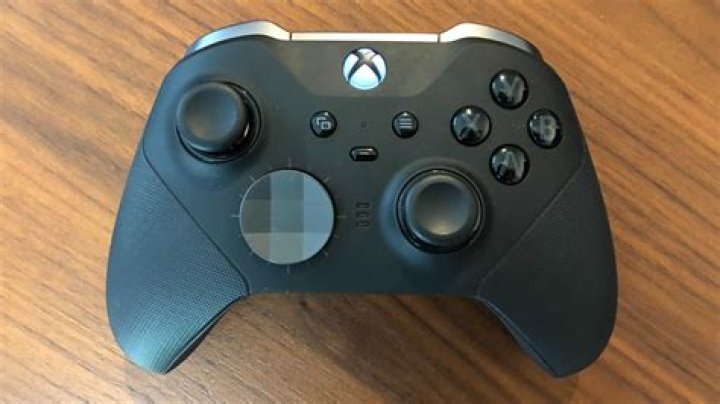
There are many questions about this subject:
- Remapping both mouse and keyboard to a gamepad
- How do I configure a joystick or gamepad?
- How to control the mouse pointer via my keyboard?
- ...
But the purpose of these questions/answers is to be able to use the gamepad for playing a game.
I would like a solution to use the gamepad to control THE mouse.
To replace the mouse by the gamepad in all applications.
That way I could control my computer in the living-room from my couch with a wireless gamepad.
5 Answers
Following Grumbel's answer, I tried *xboxdrv solution with the support of this website and especially this page:
Install xboxdrv 0.8.2 from Ubuntu Software Center.
Install also uinput and joydev if needed. I did it this way:
sudo modprobe uinput
sudo modprobe joydev
Need to know the event of the gamepad:
Launch
udevadm monitor --udevand then plug the game pad:$ udevadm monitor --udev monitor will print the received events for: UDEV - the event which udev sends out after rule processing UDEV [6722.377700] add /devices/pci0000:00/0000:00:1d.3/usb5/5-1 (usb) UDEV [6722.383264] add /devices/pci0000:00/0000:00:1d.3/usb5/5-1/5-1:1.0 (usb) UDEV [6722.383333] add /devices/pci0000:00/0000:00:1d.3/usb5/5-1/5-1:1.0/0003:046D:C218.0003 (hid) UDEV [6722.383389] add /devices/pci0000:00/0000:00:1d.3/usb5/5-1/5-1:1.0/0003:046D:C218.0003/hidraw/hidraw1 (hidraw) UDEV [6722.387123] add /devices/pci0000:00/0000:00:1d.3/usb5/5-1/5-1:1.0/input/input10 (input) UDEV [6722.399284] add /devices/pci0000:00/0000:00:1d.3/usb5/5-1/5-1:1.0/input/input10/event8 (input) UDEV [6722.412128] add /devices/pci0000:00/0000:00:1d.3/usb5/5-1/5-1:1.0/input/input10/js0 (input)I conclude that my gamepad's event is
/dev/input/event8Display names of every key, axis, button of the gamepad.
The idea is to launch
xboxdrvand test every button and note the result on paper.$ sudo xboxdrv --evdev /dev/input/event8 --evdev-debug Your Xbox/Xbox360 controller should now be available as: /dev/input/js1 /dev/input/event9 Press Ctrl-c to quit, use '--silent' to suppress the event output EV_ABS ABS_X 128 EV_ABS ABS_Y 128 ...In my case the result is:
Set the config file
Create an
xboxdrv-mouse.inifile to set X Y axis and left and right mouse button.Here I set gamepad buttons 2 for left mouse button and 3 for right mouse button:
[xboxdrv]
evdev=/dev/input/event8
silent=true
[evdev-absmap]
ABS_X=x1
ABS_Y=y1
[ui-axismap]
x1=REL_X:10
y1=REL_Y:-10
[evdev-keymap]
BTN_THUMB=a
BTN_THUMB2=b
[ui-buttonmap]
a=BTN_LEFT
b=BTN_RIGHT
# EOF #
Note that value for
REl_XandREL_Yseems to define the speed of the mouse, and by defining a negative value it inverts the axis (see here forREL_Y)Another example with more button definition
[xboxdrv]
evdev=/dev/input/event8
silent=true
[evdev-absmap]
ABS_X=x1
ABS_Y=y1
ABS_HAT0X=x2
ABS_HAT0Y=y2
[ui-axismap]
x1=REL_X:10
y1=REL_Y:-10
x2=KEY_LEFT:KEY_RIGHT
y2=KEY_DOWN:KEY_UP
[evdev-keymap]
BTN_TRIGGER=x
BTN_TOP=y
BTN_THUMB=a
BTN_THUMB2=b
BTN_PINKIE=rt
BTN_BASE2=rb
BTN_TOP2=lt
BTN_BASE=lb
BTN_BASE3=back
BTN_BASE4=start
[ui-buttonmap]
x=KEY_KPENTER
y=KEY_SPACE
a=BTN_LEFT
b=BTN_RIGHT
rt=KEY_KP8
rb=KEY_KP2
lt=KEY_KP6
lb=KEY_KP4
back=KEY_LEFTSHIFT
start=KEY_RIGHTCTRL
# EOF #
Launch it
sudo xboxdrv --config xboxdrv-mouse.iniTo avoid launching it with
sudo, create a udev rule.
CONCLUSION
It works fine, it's the best solution for me.
2Untested on Ubuntu, but this simple recipe works on Debian Jessie (with my iBuffalo classic usb gamepad):
Install the right xorg module:
sudo apt install xserver-xorg-input-joystickRestart your display manager (or reboot)
xboxdrv should be able to do what you want. It requires however a bit of configuration to work with non-Xbox gamepads, something along the lines of (check man-page for details, use --evdev-debug to find out the button and axis names):
#!/bin/sh
xboxdrv \ --evdev /dev/input/event9 \ --evdev-absmap ABS_X=X1,ABS_Y=y1 \ --evdev-absmap ABS_HAT0X=dpad_x,ABS_HAT0Y=dpad_y \ --evdev-keymap BTN_BASE=LB,BTN_BASE2=RB \ --evdev-keymap BTN_BASE3=guide,BTN_TOP2=start,BTN_PINKIE=back \ --evdev-keymap BTN_THUMB=x,BTN_TOP=a,BTN_THUMB2=b,BTN_TRIGGER=y \ \ --ui-clear \ --ui-buttonmap rb=BTN_LEFT,lb=BTN_RIGHT,start=KEY_ESC,back=KEY_F1 \ --ui-buttonmap a=KEY_SPACE \ --ui-axismap X1=REL_X:20,Y1=REL_Y:20 \ --ui-axismap DPAD_X=KEY_A:KEY_D:1,DPAD_Y=KEY_W:KEY_S:1 \ -s "$@"
# EOF #Same for a Nintendo 64 gamepad
[xboxdrv]
evdev=/dev/input/event9
silent=true
[evdev-absmap]
ABS_X=x1
ABS_Y=y1
ABS_RZ=x2
ABS_Z=y2
ABS_HAT0X=dpad_x
ABS_HAT0Y=dpad_y
[axismap]
-X2=X2
[ui-axismap]
x1=REL_X:30
y1=REL_Y:30
x2=KEY_Q:KEY_D
y2=KEY_DOWN:KEY_UP
dpad_x=KEY_LEFT:KEY_RIGHT
dpad_y=KEY_DOWN:KEY_UP
[evdev-keymap]
BTN_THUMB2=b
BTN_THUMB=a
BTN_BASE3=back
BTN_BASE4=start
BTN_BASE=lb
BTN_BASE2=rb
[ui-buttonmap]
start=KEY_KPENTER
rb=BTN_RIGHT
lb=void
a=REL_WHEEL:-1:150
b=REL_WHEEL:1:150
back=BTN_LEFT
Some details
My aim was to set this up to play to first person shoot games, as I am not used to play with mouse and keyboard. However most games on GNU/Linux do not support very well gamepad. I tried to do that like the advanced gamepad mode on the famous N64 Game 007 - GoldenEye.
This way, you can also use the gamepad to replace your mouse.
My choices
- emulate the mouse on the main stick
- yellow C (x2 y2) buttons are set to UP, DOWN keyboard keys, and the keys on an azerty keayboard for lateral move (Q and D ; change the letter for your keyboard layout)
- up right down left are assigned to the cross
- mouse left click is on Z (back) to shoot, and right click on R (rb). You might want to change the R button to KEY_SPACE to jump, depending of the game you play.
- A and B are on the mouse wheel, so you can easily change your weapons.
- the L button (lb) is left unset
Hope this will help other players.
TodoIf someone knows how to do it, I would be interested to know how to setup a kind of "center area" qhere the mouse cursor don't move, even if the stick is not perfectly in the middle. This would avoid the cursor to move a bit when you don't use the gamepad but it is still enabled.
I've tried the xboxdrv and it kind of worked but it was never perfect for me and I had to manually configure the config file. The better solution seems to be the AntiMicro project: the configuration is really simple (although the GUI is rather basic), with a couple of clicks I was able to:
- configure my pad (F710 Wireless) as a mouse - just need to assign proper buttons/sticks to the desired function in one set;
- get the central "Logitech logo" key to switch between mouse and pad operation - I simply have the second set where none of keys is assigned and the central key toggles between those two modes, therefore I can launch the game using "mouse mode" and then switch to "pad mode" to play;
- AntiMicro seems to apply the "dead zone" automatically as well - when I was using the xboxdrv I had to do this manually in config file because the cursor drifted slowly all the time in one direction, here all is good.
I think the project is quite new but for me it seems to work almost perfectly so far. The small problem is that it creates the "tray" icon that allows to switch profiles in upper left corner which does not fit well into Ubuntu global menu scheme.
1More in general

"Zoraya ter Beek, age 29, just died by assisted suicide in the Netherlands. She was physically healthy, but psychologically depressed. It's an abomination that an entire society would actively facilitate, even encourage, someone ending their own life because they had no hope. Th…"

