How can I automatically get the "Update Status" of a computer, as shown in the Settings?
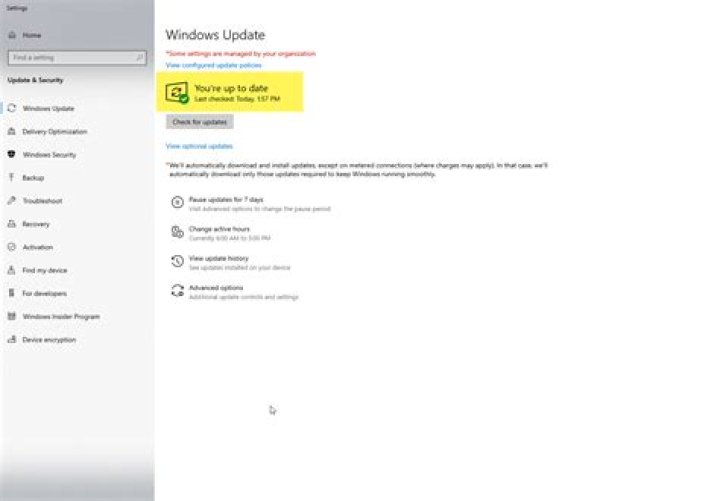
I would like to get the Update Status automatically (the Update Status being the sentence You're up to date in the screenshot below).
I have found how to get the Last checked timestamp in PowerShell using:
$(New-Object -ComObject Microsoft.Update.AutoUpdate).Results.LastSearchSuccessDate;However, trying to find the Update Status is completely eluding me. I'm not sure if the status itself is stored somewhere, or if the settings app determines the status based on the number of available updates, but I have not find a solution for replicating the status.
Does anyone know if this is possible to achieve? I am not looking to automatically force the updates to install, I solely need to get the status.
The status is usually You're up to date or Updates available, but I do believe there are other statuses like Update Failed.
Edit: The following code does not seem to do what I am looking for:
2 Answers
Continuing from my comment. Whenever you fire off Settings and click Update. windows dynamically check for updates. You can do this yourself.
($WindowsUpdateInfo = $(New-Object -ComObject Microsoft.Update.AutoUpdate)) |
Get-Member
# Results
<# TypeName: System.__ComObject#{4a2f5c31-cfd9-410e-b7fb-29a653973a0f}
Name MemberType Definition
---- ---------- ----------
DetectNow Method void DetectNow ()
EnableService Method void EnableService ()
Pause Method void Pause ()
Resume Method void Resume ()
ShowSettingsDialog Method void ShowSettingsDialog ()
Results Property IAutomaticUpdatesResults Results () {get}
ServiceEnabled Property bool ServiceEnabled () {get}
Settings Property IAutomaticUpdatesSettings Settings () {get}
MSDN ScriptMethod System.Object MSDN();
#>
Based on the results of the detection, you can use logic to spit out whatever message you choose.
If ($WindowsUpdateInfo.DetectNow() -eq $Null)
{"You're up to date"}
Else
{ Write-Warning -Message "Updates available Last checked: $($WindowsUpdateInfo.Results)"
}
See also for a similar take:
1Use the Microsoft.Update.Session object to search the Assigned, Software updates that are not Hidden or already Installed. If none are found, there are no updates, otherwise there are some available:
$updateInfoMsg = "Windows Update Status: `n";
$UpdateSession = New-Object -ComObject Microsoft.Update.Session;
$UpdateSearcher = $UpdateSession.CreateupdateSearcher();
$Updates = @($UpdateSearcher.Search("IsAssigned=1 and IsHidden=0 and IsInstalled=0 and Type='Software'").Updates);
$Found = ($Updates | Select-Object -Expand Title);
If ($Found -eq $Null) { $updateInfoMsg += "Up to date";
} Else { $Found = ($Updates | Select-Object -Expand Title) -Join "`n"; $updateInfoMsg += "Updates available:`n"; $updateInfoMsg += $Found;
}
$updateInfoMsg;
In order to run this on a remote computer, use Invoke-Command:
$server = "server";
<# Get Windows Update Info #>
$out += Invoke-Command -ComputerName $server -ScriptBlock { $updateInfoMsg = "Windows Update Status: `n"; $UpdateSession = New-Object -ComObject Microsoft.Update.Session; $UpdateSearcher = $UpdateSession.CreateupdateSearcher(); $Updates = @($UpdateSearcher.Search("IsAssigned=1 and IsHidden=0 and IsInstalled=0 and Type='Software'").Updates); $Found = ($Updates | Select-Object -Expand Title); If ($Found -eq $Null) { $updateInfoMsg += "Up to date"; } Else { $Found = ($Updates | Select-Object -Expand Title) -Join "`n"; $updateInfoMsg += "Updates available:`n"; $updateInfoMsg += $Found; } Return $updateInfoMsg;
}
$out;
Additionally, if you need to run this on a remote server that is not on the same domain, follow my answer here to set it as a trusted host
Here is an example output of the script:
computer1 ---------- Windows Update Status: Last Checked: 01/26/2021 13:40:39 Up to date computer2 ---------- Windows Update Status: Last Checked: 01/26/2021 05:59:41 Updates available: 2020-10 Cumulative Update for .NET Framework 3.5 and 4.8 for Windows 10 Version 2004 for x64 (KB4578968) Feature update to Windows 10, version 20H21
More in general

"Zoraya ter Beek, age 29, just died by assisted suicide in the Netherlands. She was physically healthy, but psychologically depressed. It's an abomination that an entire society would actively facilitate, even encourage, someone ending their own life because they had no hope. Th…"

