How to Create a Full Install of Ubuntu 22.04 to USB Device Step by Step
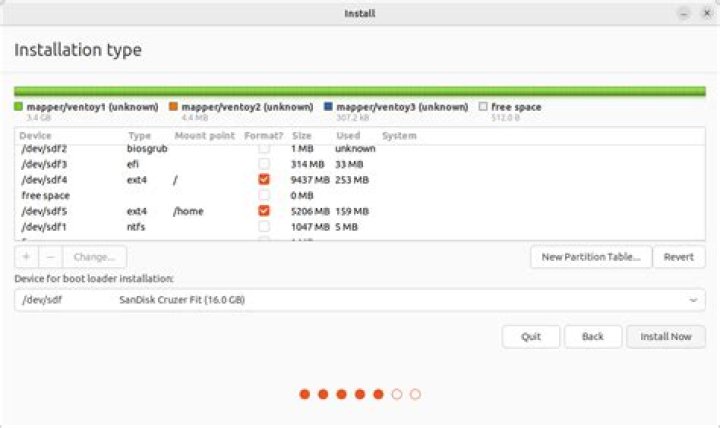
Every issue of Ubuntu LTS since 8.04, I have made a Full install of Ubuntu to USB flash drive, and recorded each step. Ubuntu installation method has changed since those days.
This has been intended to make a guide/check list for users wishing to create Full install Ubuntu family bootable drives that ares up to date for each generation.
For 22.04 these instructions should work for both creating and running the drive booted from either BIOS or UEFI.
The question is:
How to Create a Full Install of Ubuntu 22.04 to USB device with Step by Step instructions that work in either BIOS or UEFI.
1 Answer
Creating a Full Install of Ubuntu 22.04 to USB that works in both BIOS and UEFI
Following is based on using a 16GB Target drive, you may adjust partition sizes for a larger drive.
The following looks like a long procedure but it should take less than ten minutes to do the work.
- Create a Live 22.04 USB or DVD using SDC, UNetbootin, mkusb, dd, etc. (See Note 1 at bottom)
- Turn off and unplug the computer.
- Unplug the power cable from the hard drive or unplug the hard drive from the laptop. (See Note 2 at bottom) This is important if the computer boots in UEFI mode.
- Plug the computer back in.
- Insert and boot the Live USB or Live DVD. (Booting BIOS mode preferred).
- Select Language and Try Ubuntu.
- Insert the target flash drive.
- Start GParted.
- Unmount any mounted partitions on the Target drive..
- Select Device tab and create a GPT partition table on the Target drive.
- Create a 1GB NTFS or FAT32 partition on the right side. (optional Linux / Windows data partition, See Note 3 at bottom). Size may be increased on larger drives.
- Create a 1MB partition on the left side, format as unformatted.
- Create a 300MB FAT32 partition next to the 1MB partition.
- Create a 9GB ext4 partition next to the 300MB partition.
- In the remaining space create an ext4 partition, (optional for /home partition on larger USB).
- Highlight the 1MB partition.
- Apply All Operations.
- Flag the 1MB partition as bios_grub.
- Flag the 300MB partition as boot,esp.
- Do not reboot or unplug the target USB.
- Copy the
bootand theEFIfolders from the Ubuntu ISO file to the boot,esp partition sdx3. - If there any problems with permissions, etc, open Nautilus using
sudo -H nautilusand try copying again. - Start Install Ubuntu.
- Select Language, click "Continue".
- Select Keyboard layout, click "Continue".
- Select Wireless network, (optional), click "Continue".
- Select installation preference and select "Download updates while installing Ubuntu", (optional), and Select "Install third-party software ...", (optional), click "Continue".
- If asked about unmounting partitions that are in use, select Yes, click "Continue".
- Do not use Advanced feature disk encryption for this install method. (See Note 4 at bottom).
- At "Installation type" select "Something else", click "Continue".
- Under Device for boot loader installation select the target drive.
- Select partition sdx4 and click change, select use as Ext4, select “format this partition”, and Mount point = "/" then OK.
- If asked to Write previous changes... click Continue.
- Select partition sdx5 and click change, select use as Ext4, select format this partition, and Mount point = "/home" then OK. (optional).
- Click Install now.
Confirm partitions to be formatted if asked, click continue.
Select your location. click "Continue". ? - Insert your name, computer name, username, password and select if you want to log in automatically or require a password. - Click "Continue".
Wait until install is complete.
Copy
grub.cfgfrom partition sdx4 /boot/grub/ to partition sdx3 /boot/grub/ overwriting thegrub.cfgfile.Turn off computer and re-plug in the HDD.
Replace the computer's cover.
If there are any problems booting, first try re-installing GRUB:
sudo mount /dev/sdx3 /mntsudo grub-install --boot-directory=/mnt/boot /dev/sdx
Note 1, Booting ISO Files.
- If you want the USB to have the ability to boot ISO files using GRUB, create the boot drive using mkusb with the usb-pack-efi option. (this replaces GRUB 2.04 with 2.02).
- Alternatively you can put
rmmod tpmanywhere above the first menuentry in grub.cfg.
Note 2: Hard drive removal.
- You may omit disabling the hard drive in BIOS boot if after partitioning you choose to install grub to the root of the USB drive you are installing Ubuntu to, (ie sdx not sdx1). Be cautious, many people have overwritten the HDD MBR as default location for boot loader is sda, any items in the internal drive's grub will be added to the USB's grub. You may do an update-grub later. If you leave the HDD plugged in with UEFI install, fstab may use the HDD's UUID for /boot/efi. In this case # or delete the /boot/efi.UUID line in fstab.
Note 3: Apple compatibility.
- If you own an Apple computer make this partition FAT32.
Note 4: Encryption (optional).
- For method of creating Full Encryption BIOS/UEFI USB drive see: How to Make BIOS/UEFI Flash Drive with Full Disk Encryption
More in general

"Zoraya ter Beek, age 29, just died by assisted suicide in the Netherlands. She was physically healthy, but psychologically depressed. It's an abomination that an entire society would actively facilitate, even encourage, someone ending their own life because they had no hope. Th…"

