How to disable Autologon enabled by using Sysinternal's Autologon.exe?
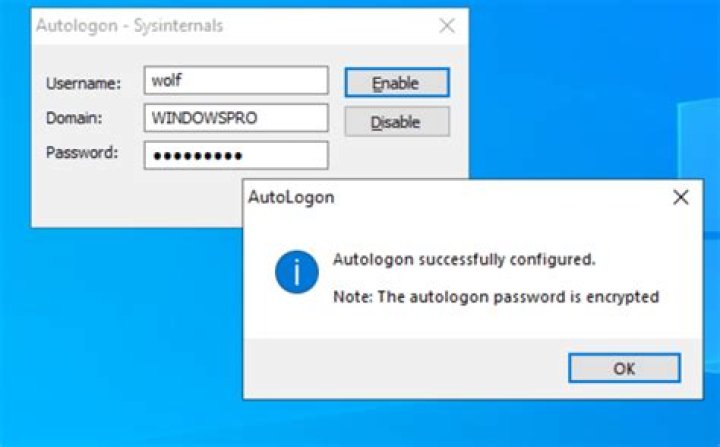
I have enabled autologon in about 150 machines (all in domain) using batch file which uses Sysinternal's Autologon.exe and PSEXEC.exe program. Now I want to disable that in all machines. But It seems like autologon.exe doesn't have a "Disable" option in command line mode. How can I disable autoLogon enabled by AutoLogon.exe through command Line?
6 Answers
The program autologon.exe itself cannot disable this. However, all autologon.exe does is change some things in the registry. Because of this you could write a script to get rid of these registry settings to run from the command prompt. You would have to edit the sections in this set of entries: HKEY_LOCAL_MACHINE\SOFTWARE\Microsoft\Windows NT\CurrentVersion\Winlogon
I know this is the opposite of what you are looking for but use this question for help: How do I change automatic logon via Script or Command Line?
3Getting the logon password out of the registry from a remote computer will not be possible according to this:
I don't know if it is possible to write a script and run it locally as admin, because a 'reg query' command in an administrative prompt gives an Access Denied.
However you can disable the autologon in the registry in HKEY_LOCAL_MACHINE\SOFTWARE\Microsoft\Windows NT\CurrentVersion\Winlogon by setting AutoAdminLogon to 0 and removing AutoLogonSID
This answer contains some new info, so read it to the end.
This application can't disable autologon by just command line, but you can do it with a script, that do exactly the app does (if app's GUI is used for autologon disabling). The app just deletes values DefaultDomainName, DefaultPassword, and DefaultUserName from HKLM\SOFTWARE\Microsoft\Windows NT\CurrentVersion\Winlogon registry key, and sets AutoAdminLogon value to 0. The app doesn't delete logon password, which stored at LSA secrets, because the password is securely encrypted anyway. But you can delete it, though. It stored at HKLM\SECURITY\Policy\Secrets\DefaultPassword subkeys' default values, so you can delete mentioned key. You must act as SYSTEM for this operation, because that key is protected from users, even administrators.
Autologon by Windows Sysinternals needs to be disabled on each machine individually by running the .exe
Building off of green's answer, I was able to successfully remove the autologon by calling this script, located on a shared folder, from the command line:
reg delete "HKLM\SOFTWARE\Microsoft\Windows NT\CurrentVersion\Winlogon" /v DefaultDomainName /y
reg delete "HKLM\SOFTWARE\Microsoft\Windows NT\CurrentVersion\Winlogon" /v DefaultPassword /y
reg delete "HKLM\SOFTWARE\Microsoft\Windows NT\CurrentVersion\Winlogon" /v DefaultUserName /y
The extra argument at the end bypasses the need to confirm each line.
According to the documentation, you should be able to run Autologon.exe again and just hit the "Disable" button. If this is Windows XP, you can try this Microsoft FixIt or the instructions on that site. You could probably also just create a registry file which will delete those keys for you (maybe it's even contained in the FixIt file).
1More in general

"Zoraya ter Beek, age 29, just died by assisted suicide in the Netherlands. She was physically healthy, but psychologically depressed. It's an abomination that an entire society would actively facilitate, even encourage, someone ending their own life because they had no hope. Th…"

