How to fix "Steam unable to sync" error?
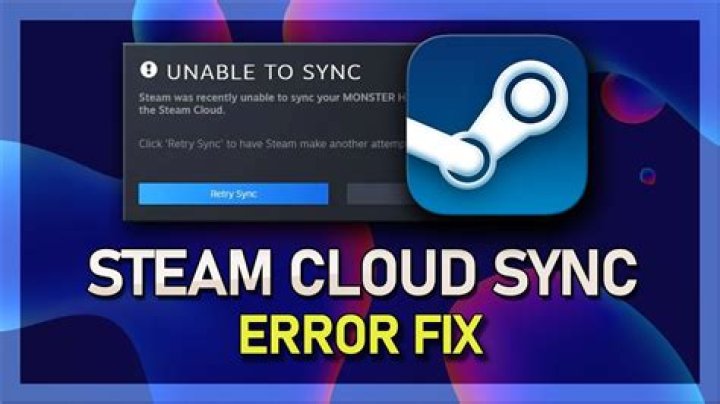
I have a steam version of torchlight 2, and this started happening when I installed and then removed some mods. Each time I'm starting torchlight I'm greeted by the following message:
After this games start as usual. I would like to have cloud sync enabled. I tried disabling and the re-enabling it, I tried backing up the save files and removing them, these did not help. Reinstalling Torchlight 2 did not help either.
Is there any way to fix this and keep the cloud sync?
16 Answers
Here's a great way to fix this without nuking Steam. My downloaded Steam Cloud files got out of whack.
In my case, I quit Steam, I found my Steam Cloud save folder on my PC for the game in question, and nuked it. Then I relaunched Steam and relaunched the game. It fetched fresh data from Steam Cloud and then synchronization worked again.
I used SteamDB to find the AppID for my game, then deleted that folder in the following path.
C:\Program Files (x86)\Steam\userdata\[MY STEAM USERID]\[APP ID]
Problem solved!
2You might want to try:
right click on Torchlight 2 in steam library
go to Local files tab and try 'Verify Integrity Of The Game Cache...'
if that doesn't help then probably you still have some remains of the mods that cause this error and you should remove them.
2There are multiple potential solutions to this nuissance, listed in order of complexity:
- Restart Steam
- Restart your PC
- Navigate to your Steam installation folder and delete or rename the file
ClientRegistry.blob. That file causes many problems every now and then... While you're at it, you can also try the same with files starting withssfn- however that may also destroy any family sharing you configured. Either way, you'll have to log in to Steam again - Check the game's cache integrity (slow...)
I ended up re-installing steam itself. After that the problem disappeared.
This happened the other day to me as well. I renamed the userdata to userdata.old and restarted Steam. After launching Portal 2 (because this was the game that didn't wanted to sync) again, the prompt didn't show and I was able to play normally. No need to reinstall Steam this way.
Running steam as admin worked for me! If you don't want to do that manually every time, you can right click the executable and there's an option to always run as admin in the compatibility tab.
1