How to make two shortcuts: Enable+Start service & Disable+Stop any windows service?
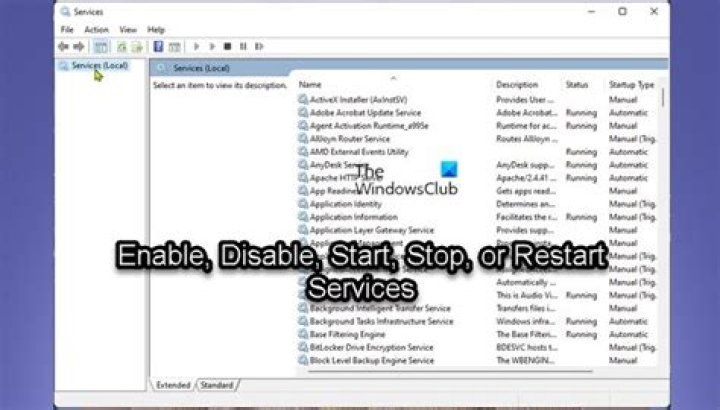
But at this time I need only shortcuts for windows update service. I don't keep windows update service running all time but windows store needs windows update service running. I want to enable+start windows update service before opening windows store with shortcut and disable+stop windows update service after closing windows store.
I found some good answers to restart a service here :
Any help will be useful for me and people with same need.
WORKED FOR ME: (windows 10)
I created two text files & paste those one line code in each (see accepted answer)
I changed those files extension to .bat
I created 2 shortcuts for both files
I edited those 2 shortcuts to run as admin, > right click on shortcut > click "properties" > go to "shortcut" tab > click "advanced" > tick "run as administrator" > OK > OK
INFO: to get any service name. Go to "services" > right click any service > properties > see service name.
2 Answers
How do I enable/start and stop/disable the Windows Update Service from cmd?
You can do this using sc commands.
- Either assign the commands to a shortcut or add them to a batch file and assign the batch file to a shortcut.
- To do the same with any other service replace
wuauservwith the service name.
Enable/Start:
sc config wuauserv start= auto & sc start wuauservStop/Disable:
sc stop wuauserv & sc config wuauserv start= disabledExample output:
> sc config wuauserv start= auto & sc start wuauserv
[SC] ChangeServiceConfig SUCCESS
SERVICE_NAME: wuauserv TYPE : 20 WIN32_SHARE_PROCESS STATE : 2 START_PENDING (NOT_STOPPABLE, NOT_PAUSABLE, IGNORES_SHUTDOWN) WIN32_EXIT_CODE : 0 (0x0) SERVICE_EXIT_CODE : 0 (0x0) CHECKPOINT : 0x0 WAIT_HINT : 0x7d0 PID : 1204 FLAGS :
> sc stop wuauserv & sc config wuauserv start= disabled
SERVICE_NAME: wuauserv TYPE : 20 WIN32_SHARE_PROCESS STATE : 3 STOP_PENDING (NOT_STOPPABLE, NOT_PAUSABLE, IGNORES_SHUTDOWN) WIN32_EXIT_CODE : 0 (0x0) SERVICE_EXIT_CODE : 0 (0x0) CHECKPOINT : 0x1 WAIT_HINT : 0x7530
[SC] ChangeServiceConfig SUCCESS
Further Reading
- An A-Z Index of the Windows CMD command line - An excellent reference for all things Windows cmd line related.
- sc - Service Control - Create, Start, Stop, Query or Delete any Windows SERVICE.
On Windows:
- Right click the desktop.
- Select "New->Shortcut" from the menu to create a shortcut.
- Instead of the location of the item, in the "Type the location of the item" dialog box enter your Command Prompt arguments.
Once the shortcut has been created:
- Right click the shortcut to go to "Properties".
- Select "Advanced" option in the "Shortcut" tab and tick "Run as administrator".


