HP Officejet Pro 8720 with Ubuntu 20.04 can't scan from PC
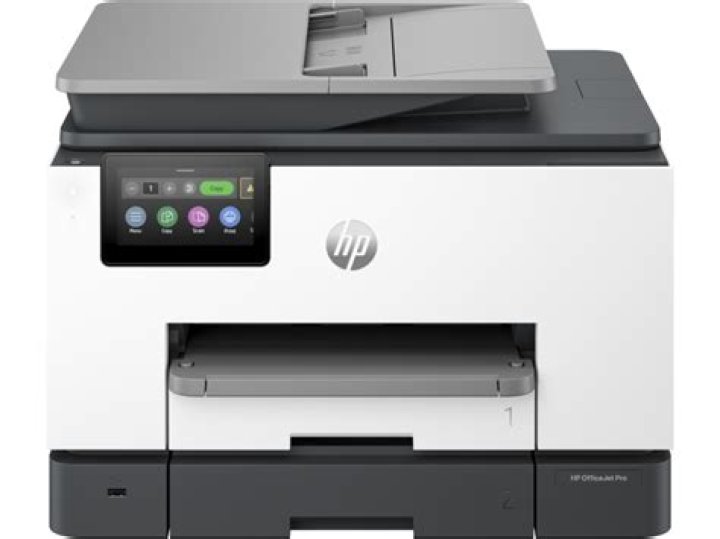
Ubuntu 20.04LTS --
Printing works fine so I don't want to mess that up since I print more often than I scan.
There are 58 items in usr/share/hplip/ including a folder called scan with 3 items.
Simple scan does not find a scanner.
This would be nice to have but I can work around it by plugging a USB stick in and capturing the scan there.
If anyone has gotten this to work, I'd be interested in the solution.
Thanks!
33 Answers
The HP Linux Imaging and Printing site lists all supported printers.
The good news is that "HP OfficeJet Pro 8720 All-in-one Printer" is listed as a supported printer. Additionally the 7th column shows that "Scan to PC" is also supported for this model.
Install HPLIP (HP Linux Imaging and Printing)
Open a terminal
(Although most things in Ubuntu can be done using a GUI interface, I'll list the commands because it's more expedient and also easier to document the exact steps).
Ensure you have the software repository enabled
sudo apt-add-repository universeThis will automatically update your repositories, but you can also execute
sudo apt updateto manually update, if needed.Install HPLIP
sudo apt install hplipOptionally, install HPLIP GUI tools
sudo apt install hplip-gui
Setup your printer (HP OfficeJet Pro 8720 All-in-one Printer)
Get your printer's network name
On your printer's LCD control panel, drag the gray top-bar down, tap the network icon, and write down the Host Name.
The network name may be something like "HP_OfficeJet_Pro_8720".
(You can use your printer's IP address, but I highly recommend setting up your printer using its network name, because IP addresses can change).
Setup HPLIP to use your printer
On your Ubuntu computer, execute the following command.
Replace "HP_OfficeJet_Pro_8720" with the actual network name of your printer from the previous step.
Be sure to add
.localat the end, as shown!sudo hp-setup -i HP_OfficeJet_Pro_8720.localSupply the following information when requested:
Please enter a name for this print queue (m=use model name:'psc_2500'*, q=quit) ?:
HP_8720_PrinterDoes this PPD file appear to be the correct one (y=yes*, n=no, q=quit) ?
yEnter a location description for this printer (q=quit) ?
If you want to leave this blank, just press Enter
Enter additional information or notes for this printer (q=quit) ?
HP OfficeJet Pro 8720 PrinterPlease enter a name for this fax queue (m=use model name:'psc_2500_fax'*, q=quit) ?
HP_8720_FaxEnter a location description for this printer (q=quit) ?
If you want to leave this blank, just press Enter
Enter additional information or notes for this printer (q=quit) ?
HP OfficeJet Pro 8720 FaxWould you like to perform fax header setup (y=yes*, n=no, q=quit) ?
nWould you like to print a test page (y=yes*, n=no, q=quit) ?
n
Make the printer default
- In Ubuntu, open System Settings app
- Select Printers in the left pane
- Click the gear icon next to "HP_8720_Printer"
- Check-mark "Use Printer by Default"
Test Scanning
- Launch Simple Scan (aka. "Document Scanner")
- Wait for "Searching for Scanners" to complete
- You should see the message "Ready to Scan"
- Select "HP HP_OfficeJet_Pro_8720" from the drop down
- Click the Scan button in the header bar
@PJ Singh has given a very full answer in the context of HPLIP. My answer is in the context of of fitting your present modern printing setup into a modern scanning method.
Basically: Nothing of HPLIP is needed. This will come as a shock to all the users who advocate its use. However, things have moved on in 2021.
Install sane-airscan (main page).
Debian packages are here.
I would be very interested in the outputs of scanimage -L and airscan-discover and whether you can now scan.
I solved my printer problem by turning the printer's power off and then back on.


