Is there an Excel formula to identify special characters in a cell?
We have about 3500 documents whose filenames need to be manually scrubbed to remove special characters like brackets, colons, semicolons, commas, etc.
I have a text file that I've dumped into excel, and I'm trying to create a column that flags the filename for modification if it includes special characters. The pseudocode formula would be
=IF (cellname contains [^a-zA-z_-0-9], then "1", else "0")to flag the row if it contains any characters other than A-Z, 0-9, - or _, regardless of case.
Anyone know of something that may work for me? I'm hesitant to code and massive if statement if there's something quick and easy.
4 Answers
No code? But it's so short and easy and beautiful and... :(
Your RegEx pattern [^A-Za-z0-9_-] is used to remove all special characters in all cells.
Sub RegExReplace() Dim RegEx As Object Set RegEx = CreateObject("VBScript.RegExp") RegEx.Global = True RegEx.Pattern = "[^A-Za-z0-9_-]" For Each objCell In ActiveSheet.UsedRange.Cells objCell.Value = RegEx.Replace(objCell.Value, "") Next
End Sub
Edit
This is as close as I can get to your original question.
The second code is a user-defined function =RegExCheck(A1,"[^A-Za-z0-9_-]") with 2 arguments. The first one is the cell to check. The second one is the RegEx pattern to check for. If the pattern matches any of the characters in your cell, it will return 1 otherwise 0.
You can use it like any other normal Excel formula if you first open VBA editor with ALT+F11, insert a new module (!) and paste the code below.
Function RegExCheck(objCell As Range, strPattern As String) Dim RegEx As Object Set RegEx = CreateObject("VBScript.RegExp") RegEx.Global = True RegEx.Pattern = strPattern If RegEx.Replace(objCell.Value, "") = objCell.Value Then RegExCheck = 0 Else RegExCheck = 1 End If
End Function
For users new to RegEx I'll explain your pattern: [^A-Za-z0-9_-]
[] stands for a group of expressions
^ is a logical NOT
[^ ] Combine them to get a group of signs which should not be included
A-Z matches every character from A to Z (upper case)
a-z matches every character from a to z (lower case)
0-9 matches every digit
_ matches a _
- matches a - (This sign breaks your pattern if it's at the wrong position)Using something similar to nixda's code, here is a user defined function that will return 1 if the cell has special characters.
Public Function IsSpecial(s As String) As Long Dim L As Long, LL As Long Dim sCh As String IsSpecial = 0 For L = 1 To Len(s) sCh = Mid(s, L, 1) If sCh Like "[0-9a-zA-Z]" Or sCh = "_" Then Else IsSpecial = 1 Exit Function End If Next L
End Function
User Defined Functions (UDFs) are very easy to install and use:
- ALT-F11 brings up the VBE window
- ALT-I ALT-M opens a fresh module
- paste the stuff in and close the VBE window
If you save the workbook, the UDF will be saved with it. If you are using a version of Excel later then 2003, you must save the file as .xlsm rather than .xlsx
To remove the UDF:
- bring up the VBE window as above
- clear the code out
- close the VBE window
To use the UDF from Excel:
=IsSpecial(A1)
To learn more about macros in general, see:
and
and
for specifics on UDFs
Macros must be enabled for this to work!
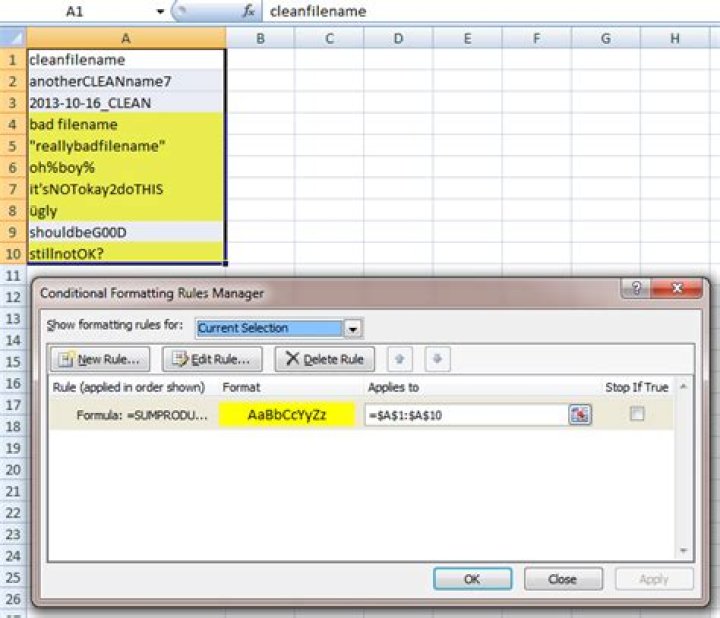
4Here's a conditional formatting solution that will flag the records with special characters.
Just apply a new conditional formatting rule to your data that uses the (extremely long) formula below, where A1 is the first record in the column of file names:
=SUMPRODUCT((CODE(MID(A1,ROW(INDIRECT("1:"&LEN(A1))),1))<48)*(CODE(MID(A1,ROW(INDIRECT("1:"&LEN(A1))),1))<>45))+SUMPRODUCT((CODE(MID(A1,ROW(INDIRECT("1:"&LEN(A1))),1))>57)*(CODE(MID(A1,ROW(INDIRECT("1:"&LEN(A1))),1))<65))+SUMPRODUCT((CODE(MID(A1,ROW(INDIRECT("1:"&LEN(A1))),1))>90)*(CODE(MID(A1,ROW(INDIRECT("1:"&LEN(A1))),1))<97)*(CODE(MID(A1,ROW(INDIRECT("1:"&LEN(A1))),1))<>95))+SUMPRODUCT((CODE(MID(A1,ROW(INDIRECT("1:"&LEN(A1))),1))>122)*1)This formula checks each character of each filename and determines if its ASCII code is outside the allowable character values. Unfortunately, the allowable character codes are not all contiguous, so that's why the formula has to use sums of SUMPRODUCTs. The formula returns the number of bad characters there are. Any cells that return a value greater than 0 are flagged.
Example:
I used a different approach to find special characters. I created new columns for each of the allowed characters, and then used a formula like this to count how many times that allowed character was in each row entry (Z2):
AA2=LEN($Z2)-LEN(SUBSTITUTE($Z2,AA$1,""))
AB2=LEN($Z2)-LEN(SUBSTITUTE($Z2,AB$1,""))
...
Then I summed the number of allowed characters in each row, and then compared it to the total length of the row entry.
BE2=LEN(Z2)
BF2=SUM(AA2:BC2)-BE2
And finally, I sorted on the last column (BF2) to find negative values, which led me to the columns that needed correction.
More in general

"Zoraya ter Beek, age 29, just died by assisted suicide in the Netherlands. She was physically healthy, but psychologically depressed. It's an abomination that an entire society would actively facilitate, even encourage, someone ending their own life because they had no hope. Th…"

