Npm can't find module "semver" error in Ubuntu 19.04
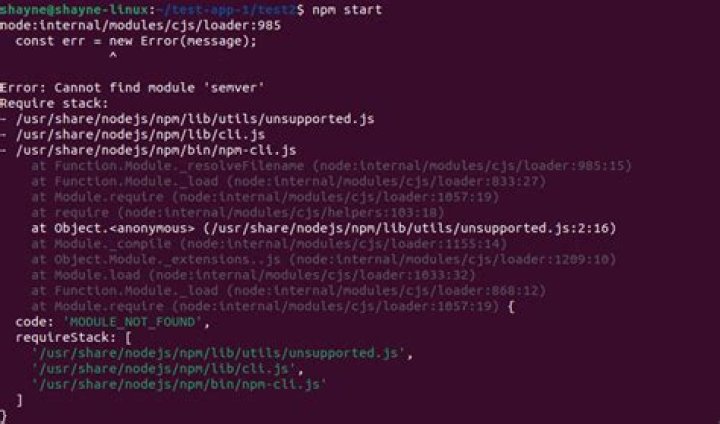
I am getting the following error whenever I try to run npm command.
internal/modules/cjs/loader.js:626
throw err;
^
Error: Cannot find module 'semver'
Require stack:
- /usr/share/npm/lib/utils/unsupported.js
- /usr/share/npm/bin/npm-cli.js at Function.Module._resolveFilename (internal/modules/cjs/loader.js:623:15) at Function.Module._load (internal/modules/cjs/loader.js:527:27) at Module.require (internal/modules/cjs/loader.js:681:19) at require (internal/modules/cjs/helpers.js:16:16) at Object.<anonymous> (/usr/share/npm/lib/utils/unsupported.js:2:14) at Module._compile (internal/modules/cjs/loader.js:774:30) at Object.Module._extensions..js (internal/modules/cjs/loader.js:785:10) at Module.load (internal/modules/cjs/loader.js:641:32) at Function.Module._load (internal/modules/cjs/loader.js:556:12) at Module.require (internal/modules/cjs/loader.js:681:19) { code: 'MODULE_NOT_FOUND', requireStack: [ '/usr/share/npm/lib/utils/unsupported.js', '/usr/share/npm/bin/npm-cli.js' ]
}
I was basically trying to make offline use of FreeCodeCamp. It asked me to run command 'npm ci' from which I started getting this error.
I tried reinstalling npm but it won't work. I also tried installing the semver module which also didn't help.
What might have gone wrong and how can I fix this?
6 Answers
Found a similar question here and the answer worked.
sudo rm -rf /usr/local/bin/npm /usr/local/share/man/man1/node* ~/.npm
sudo rm -rf /usr/local/lib/node*
sudo rm -rf /usr/local/bin/node*
sudo rm -rf /usr/local/include/node*
sudo apt-get purge nodejs npm
sudo apt autoremove
Download the latest tar.xz NodeJS file from
tar -xf node-v#.#.#-linux-x64.tar.xz
sudo mv node-v#.#.#-linux-x64/bin/* /usr/local/bin/
sudo mv node-v#.#.#-linux-x64/lib/node_modules/ /usr/local/lib/
Where #.#.# is the version you downloaded.
Verify installation using
node -v
npm -vIt depends on how you want to manage Node JS/npm.
As Bilbo Baggins suggested, you can install the latest LTS version of Node JS from the official website: .
On Ubuntu, if you would rather manage Node through the default repositories using apt, it's best to install both nodejs and npm this way.
It's very likely that the version of npm you are using is expecting semver in a specific place that is not aligned with the version of Node JS you have installed. If there is only one version of nodejs and only one version of npm, and they are both installed using the default repositories, this should work perfectly.
Here is my best guidance for getting Node and npm working using the main Ubuntu repositories:
sudo apt-get purge nodejs --auto-removeandsudo apt-get purge npm --auto-removewhereis node: remove all the versions of node, one at a time. Repeat until this command returns a blank afternode:.sudo apt-get install nodejsnode --version: should return... no such file or directorynodejs --version: should returnv1x.x.x. This is the version installed byapt. It will probably be less recent that the latest version available on the Node JS website.sudo apt-get install npmnpm --version: it will use thenodejsinstalled byaptand work correctly.
I was using nvm to manage node versions, In my case npm syslink was broken i solved it by uninstalling and then reinstalling node again
check your node version using node --version
then run nvm uninstall <your version>
then reinstall using nvm install <your version
Run this command it will automatically remove previous version of npm and install new version of npm, worked for me, you can check here for details
curl -qL | shI was facing an Angular project. Somehow, Angular-CLI (ng) was removed.
So I just verified that node and npm are installed and did the following which fixed it:
sudo npm install -g @angular/cli In my case I was using nvm so I had to remove all node versions (rm -rf ~/.nvm/versions/node/*) then install both nodejs and npm :
sudo apt install nodejs
sudo apt install npm

