Outlook 2010 - All rules have "and stop processing more rules" and can't turn off
I have several rules on Outlook 2010 to automatically sort my incoming mail. Whenever I add a new rule I get the warning
The rule has a condition that the server cannot process. The action 'stop processing more rules' will prevent all remaining server rules from being carried out. Are you sure this is what you want to do?
I did some research and it looks like a lot of the times the issue is that rules have and stop processing more rules as part of them. I checked and literally every one of my rules have this condition.
The issue, however, is that there is no way to remove this condition. Doing research, the and stop processing more rules condition should be listed as one of them to check when adding/editing a rule and in all screenshots I could find it is the first one on the list. However, it is not included anywhere on the list. Please see the screenshots of the Edit Rules Window below:
How do I remove this part of the rule if it's not included in the list? As mentioned this is part of every rule I create and I have 20-30 of them, so as of now it's impossible for me to have more than one rule run automatically for incoming e-mails.
26 Answers
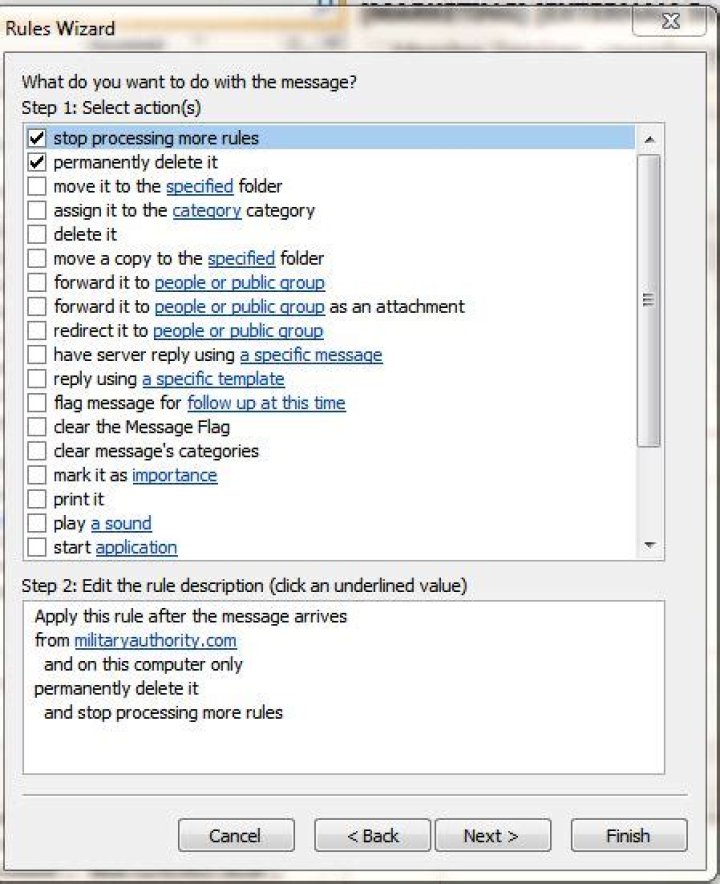
The condition you want to change isn't on the conditions page. It's on the actions page. Click Next and look near the bottom of the list.
I think what that means is that no other rules will be applied to any given email. So every new message will check it self against all the custom rules but once one rule does apply then it will stop trying the remaining rules for that particular email. I don't think it means that no other emails will have the rules run against them.
Edit: Looks like in the latest version of outlook you can uncheck that option.
2Click "Next" to move to the "Select Action(s)" page of the wizard. You will be presented with the option of unchecking the "and stop processing more rules" action.
The meaning of the "and stop processing more rules" action is, "and stop processing more rules ON THIS MESSAGE". You are correct that it is not very clear exactly what that action means. Microsoft could and should change the wording to be more precise.
Yes, you have to click Next and remove the tick "stop processing more rules" at the top. And then click Finish. My problem by not doing this is that when a rule has been applied to a mail from a certain person, the next time you get a mail from the same person, the rule doesn't apply, which might be a bug in Outlook 2013, or dumb programming. So every time you are creating a rule, you have to go through this procedure or your rules will only work once.
1I have Outlook 2013. It appears that this option is set as a default. I kept loosing the functionality of my rules, and kept executing clean rules and creating the rules again. I never looked at the setting on the second dialog box. And I don't recall this as a default in 2007 nor 2010.
To circumvent it, you need to set up a rule through the advanced options. The short method will end up with that selection defaulted as on.
Having experienced this issue myself, I found the answer on MS support:
Turns out that if a client-side rule has the "Stop processing more rules" command, then any following server-side rules are not executed - I guess because the server gets the message first and doesn't know whether the client-side rules will be triggered, so it assumes that it will.
1

