Starting Outlook automatically in Windows 10
How can I get Outlook to start whenever I start my Windows 10 computer?
17 Answers
You should be able to add a shortcut to Outlook in the Startup folder. To open the Startup folder:
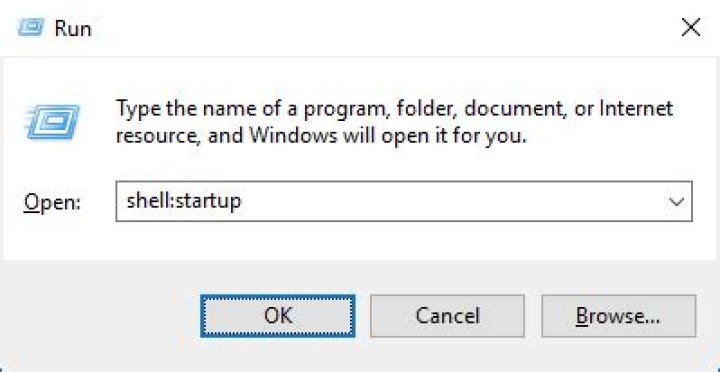
Using the Run dialog:
- Bring up Run dialog Win+R
- Type
shell:startup
Copy the shortcut to Outlook to the Startup folder:
- Right click on the Outlook shortcut from your start menu
- Select
Open file location - Copy the shortcut for Outlook to the Startup folder
On Windows 10:
- Go to Start
- Scroll down until you find Outlook
- Right-click on Outlook
- Click
Morethen clickGo to File Location - Copy the shortcut
- Paste the shortcut into the Startup folder:
Users\me\AppData\Roaming\Microsoft\Windows\Start Menu\Programs\Startup - That's it.
The short one-liner
- Right-click your Start button and choose Windows PowerShell.
- Copy and paste the following command and hit Enter:
cp(gci([Environment]::GetFolderPath(22)) -r -fi *Outlook*.lnk).FullName ([Environment]::GetFolderPath(7))
Outlook should start next time you log in.
The expanded version of the command
Copy-Item (Get-ChildItem ([Environment]::GetFolderPath("CommonStartMenu")) -Recurse -Filter "*Outlook*.lnk").FullName ([Environment]::GetFolderPath("Startup"))Wildcards are used when searching for the Outlook shortcut because it goes by different names depending on Office version (e.g. Microsoft Outlook 2010, Outlook).
To build on @Glenn's answer for Win7+Outlook 2010:
As easy as this is supposed to be, I tried various other methods (Windows 7); stupid MS removed the ability to set this from within Outlook (2010); and the shortcuts in Start menu did not have the 'open file location' option, even the one under 'All Programs/MS Office' - it was only after I did a "search" for outlook by clicking Start and typing in search window, that it showed this option ! What a harrowing hour for a measly shortcut !!
I wanted to add a comment to @glenn's answer, but the site doesn't allow. So, here is an alternative:
- For any installed application, you can 'shell:appsfolder' in the Run window (Win+R), then find your app, and while holding mouse right button drag it to the startup folder, and choose 'Create Shortcut Here'.
- As Glenn has already mentioned, you can open the startup folder by running 'shell:startup' in the Run window.
- For any random executable file, you can either
- If you have the shortcut file already, copy and paste in the startup folder.
- Find it in Windows Start menu, right click and choose 'open file location'.
- When the app is running, go to Task Manager (Ctrl+Shift+Esc), find it in the list of running apps, right click and chose 'open file location', the rest is the same.
In order to add any program to startup when Windows starts simply copy the Shortcut to the Startup Folder
Open the command window (Win+R) and enter
%AppData%\Microsoft\Windows\Start Menu\Programs\Startup
This will open the Startup location in the File Explorer. Next from the Start Menu right click the program you want to have startup (Outlook in this case) and select More->Open File Location this will open the location of the program Shortcut. Finally copy and paste the shortcut into the Startup Folder.
Copied from Microsoft's article here
On my build of Win 10 the shell:startup shortcut doesn't work and other sites, saying the Start Menu folder was in \users\username\APPDATA\Microsoft ... also wrong. (Edit: Whoops - no idea how I missed it but there IS a "Startup" folder there - but it was pretty much empty. Just one file which was a shortcut to an application I uninstalled a long time ago! So not really helpful!)
I found what looks like the old "all users" start menu in C:\ProgramData\Microsoft\Windows\Start Menu
Still looking for my user one! (But not too hard because I'm the only one that uses this machine so the folder above will do for now!) :)
0

