Ubuntu 20.04 Lenovo Ideapad Microphone not working
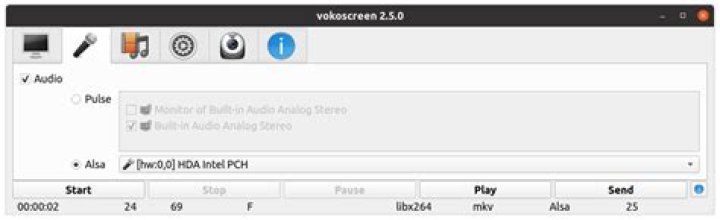
Internal Microphone is only recording static noise on Lenovo Ideapad and Ubuntu 20.04.
I've tried deleting PulseAudio config, restarting PulseAudio, and reinstalling Alsa. sudo pavucontrol was no help either.
I know the mic is fine since it works on another OS.
This is the Alsa config:
pouria@pouria-pc:~$ sudo cat /etc/modprobe.d/alsa-base.conf
# autoloader aliases
install sound-slot-0 /sbin/modprobe snd-card-0
install sound-slot-1 /sbin/modprobe snd-card-1
install sound-slot-2 /sbin/modprobe snd-card-2
install sound-slot-3 /sbin/modprobe snd-card-3
install sound-slot-4 /sbin/modprobe snd-card-4
install sound-slot-5 /sbin/modprobe snd-card-5
install sound-slot-6 /sbin/modprobe snd-card-6
install sound-slot-7 /sbin/modprobe snd-card-7
# Cause optional modules to be loaded above generic modules
install snd /sbin/modprobe --ignore-install snd $CMDLINE_OPTS && { /sbin/modprobe --quiet --use-blacklist snd-ioctl32 ; /sbin/modprobe --quiet --use-blacklist snd-seq ; }
#
# Workaround at bug #499695 (reverted in Ubuntu see LP #319505)
install snd-pcm /sbin/modprobe --ignore-install snd-pcm $CMDLINE_OPTS && { /sbin/modprobe --quiet --use-blacklist snd-pcm-oss ; : ; }
install snd-mixer /sbin/modprobe --ignore-install snd-mixer $CMDLINE_OPTS && { /sbin/modprobe --quiet --use-blacklist snd-mixer-oss ; : ; }
install snd-seq /sbin/modprobe --ignore-install snd-seq $CMDLINE_OPTS && { /sbin/modprobe --quiet --use-blacklist snd-seq-midi ; /sbin/modprobe --quiet --use-blacklist snd-seq-oss ; : ; }
#
install snd-rawmidi /sbin/modprobe --ignore-install snd-rawmidi $CMDLINE_OPTS && { /sbin/modprobe --quiet --use-blacklist snd-seq-midi ; : ; }
# Cause optional modules to be loaded above sound card driver modules
install snd-emu10k1 /sbin/modprobe --ignore-install snd-emu10k1 $CMDLINE_OPTS && { /sbin/modprobe --quiet --use-blacklist snd-emu10k1-synth ; }
install snd-via82xx /sbin/modprobe --ignore-install snd-via82xx $CMDLINE_OPTS && { /sbin/modprobe --quiet --use-blacklist snd-seq ; }
# Load saa7134-alsa instead of saa7134 (which gets dragged in by it anyway)
install saa7134 /sbin/modprobe --ignore-install saa7134 $CMDLINE_OPTS && { /sbin/modprobe --quiet --use-blacklist saa7134-alsa ; : ; }
# Prevent abnormal drivers from grabbing index 0
options bt87x index=-2
options cx88_alsa index=-2
options saa7134-alsa index=-2
options snd-atiixp-modem index=-2
options snd-intel8x0m index=-2
options snd-via82xx-modem index=-2
options snd-usb-audio index=-2
options snd-usb-caiaq index=-2
options snd-usb-ua101 index=-2
options snd-usb-us122l index=-2
options snd-usb-usx2y index=-2
# Ubuntu #62691, enable MPU for snd-cmipci
options snd-cmipci mpu_port=0x330 fm_port=0x388
# Keep snd-pcsp from being loaded as first soundcard
options snd-pcsp index=-2
# Keep snd-usb-audio from beeing loaded as first soundcard
options snd-usb-audio index=-2
This is my hardware:
pouria@pouria-pc:~$ sudo lspci -knn | grep Audio -A3
00:1f.3 Audio device [0403]: Intel Corporation Sunrise Point-LP HD Audio [8086:9d71] (rev 21) Subsystem: Lenovo Sunrise Point-LP HD Audio [17aa:380d] Kernel driver in use: snd_hda_intel Kernel modules: snd_hda_intel
00:1f.4 SMBus [0c05]: Intel Corporation Sunrise Point-LP SMBus [8086:9d23] (rev 21)
I just upgraded my kernel but didn't have any effect
pouria@pouria-pc:~$ uname -r
5.7.0-050700-genericUPDATE:
I asked the question here with no details (nor bounties), surprisingly some guy answered that gave me a clue.In vokoscreen if I set the recording option to
Pulse it doesn't record anything but when the recording option is set to Alsa it recrods.
So now I know Alsa is fine but PulseAudio is messing it up. Now please help me with PulseAudio.
93 Answers
Finally Solved: After I knew the problem was due to PulseAudio not Alsa I went to the PulseAudio Troubleshooting page and I was amazed, they had a section on static noise, even mentioning my laptop name and model, also a section on microphone distortion. So I followed the instructions and it's now fixed.
The Steps to fix the issue are:
- In
pavucontrolfor my laptop model set left mic channel to zero. - Edit
/usr/share/pulseaudio/alsa-mixer/paths/analog-input*.confand set mic boost volume to zero. - I also added some noise reduction arguments from the same page.
After a long try I found the solution for my Ubuntu 20.0.4 on my Lenovo laptop (Ideapad 330):
First delete the following files:
rm -rf ~/.config/pulse/Then, Log out and Log back in.
Go to Desktop Settings and then Sound
Insert headphones and go to Input section.
Do microphone audio test on each available device.
Mic will start working.
0In addition to the accepted answer, you can check out the following post: Disable PulseAudio Auto Volume.
This post indicates that you can edit the following files as root:
sudo emacs -nw /usr/share/pulseaudio/alsa-mixer/paths/analog-input-dock-mic.conf
sudo emacs -nw /usr/share/pulseaudio/alsa-mixer/paths/analog-input-front-mic.conf
sudo emacs -nw /usr/share/pulseaudio/alsa-mixer/paths/analog-input-headphone-mic.conf
sudo emacs -nw /usr/share/pulseaudio/alsa-mixer/paths/analog-input-headset-mic.conf
sudo emacs -nw /usr/share/pulseaudio/alsa-mixer/paths/analog-input-internal-mic-always.conf
sudo emacs -nw /usr/share/pulseaudio/alsa-mixer/paths/analog-input-internal-mic.conf
sudo emacs -nw /usr/share/pulseaudio/alsa-mixer/paths/analog-input-mic.conf
sudo emacs -nw /usr/share/pulseaudio/alsa-mixer/paths/analog-input-rear-mic.conf
And update the following fields wherever you see them in these files. You don't need to update volume if it's set to off. Only devices that are awake need to be adjusted.
Under [
Element Internal Mic Boost]setvolumetozero. This includes any variations like[Element Dock Mic Boost].Under
[Element Int Mic Boost]setvolumetozero.Under
[Element Mic Boost]setvolumetozero.
Restart the computer for the changes to take effect.
3

