Ubuntu Touchscreen on Voyo VBOOK V3
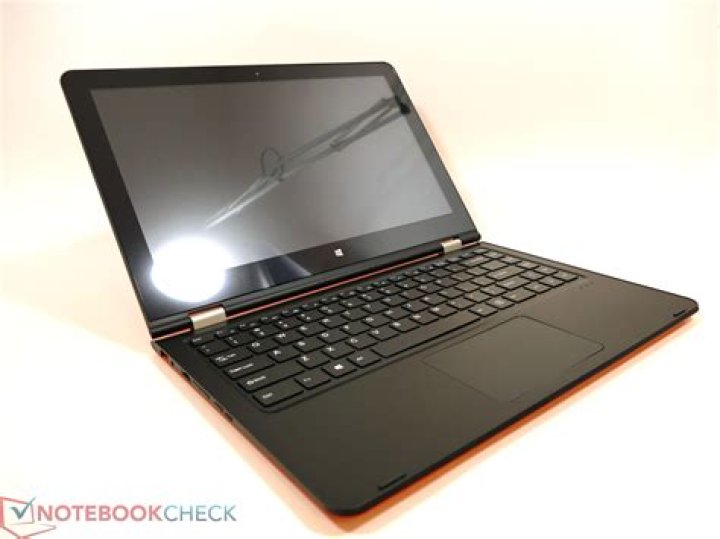
Is there any possibility to get the touchscreen on my Voyo VBOOK V3 working? I can't find any drivers or packages for it. The 2 in 1 notebook came with preinstalled windows 10. I installed Ubuntu 16.04 LTS but the touchscreen is not working.
Running xinput calibrator displays:
Error: No calibratable devices found.
How can I fix it?
2 Answers
I've managed it, with a lot of work. You may be able to also - but apparently the hardware varies considerably between variants of the V3, so your mileage may vary. Also, I'm using Linux Mint, so apologies if filenames are slightly off. Oh, and haven't managed to get multitouch working. So with all the caveats out of the way, here's what you need to know:
- The driver is already available for your kernel - silead - as root, do
modprobe sileadand check that it appears in lsmod. It might not, but it might fail silently because there is no firmware. - You will need firmware. Go to - there is a file early on in that discussion called firmware.zip - extract the file
h_firmware.fw. You then need to create a folder/lib/firmware/sileadand copy that file there, with the namemssl1680.fw- reboot, and it might all magically work (albeit badly - see below) - usedmesgto debug. If there's no progress, you may need to tell Xorg that you're using a silead touchscreen - make sure the folder
/etc/X11/xorg.conf.d/is created (create it if not) and add the file99-calibration.confas follows:Section "InputClass" Identifier "calibration" MatchProduct "silead_ts" Option "Device" "/dev/input/event14" Option "MinX" "31405" Option "MaxX" "-20" Option "MinY" "23984" Option "MaxY" "76" Option "SwapXY" "0" # unless it was already set to 1 Option "InvertX" "0" # unless it was already set Option "InvertY" "0" # unless it was already set EndSectionReboot. If you don't now have some touchscreen activity, then I may have forgotten a step, or you might have different hardware. Check /var/log/Xorg.0.log to see if there are any useful silead errors.
If you have success this far, then this is good. But you'll find that only a small portion of your screen is covered - this is where touchscreen calibration comes in, and xinput calibrator would be great - if it worked.
If it doesn't, there is a tool that does work: xcal
However, while it works, it doesn't make your changes permanent, and while it tells you the calibration values, it doesn't tell you how to use it. However, it's a simple python script! Near the beginning of xcal there's a method called xinput - I've modified mine as follows:
def xinput(*args): print('XINPUT command: ') print(' '.join(args)) return run(args=('/usr/bin/xinput', *args), stdout=PIPE, check=True, universal_newlines=True).stdoutNext time you run xcal, and tell it to apply changes, it will pump out an output like:
XINPUT command:
--set-prop 14 libinput Calibration Matrix -2.0955599326947874, 0.006377553411765824, 1.002925809292515, -0.005228040857399382, -2.708875418324387, 1.0022455037336648, 0.0, 0.0, 1.0,
you will need to add some quotes, but essentially, that's your xinput command:
xinput --set-prop 14 libinput Calibration Matrix -2.0955599326947874, 0.006377553411765824, 1.002925809292515, -0.005228040857399382, -2.708875418324387, 1.0022455037336648, 0.0, 0.0, 1.0Lastly, to make it stick: I put that command in the bottom of my ~/.xinputrc file. You might need to find somewhere else, dependent on whether you need touchscreen for your login screen.
Add the following line in /etc/X11/xinit/xinputrc
xinput --set-prop 10 "libinput Calibration Matrix" -2.0882497963235185, 0.0, 1.001125569612532, 0.0, -2.6999736330699893, 1.006245056200623, 0.0, 0.0, 1.0,and reboot
More in general

"Zoraya ter Beek, age 29, just died by assisted suicide in the Netherlands. She was physically healthy, but psychologically depressed. It's an abomination that an entire society would actively facilitate, even encourage, someone ending their own life because they had no hope. Th…"

