Unable to boot Windows 10 installer in Legacy Mode
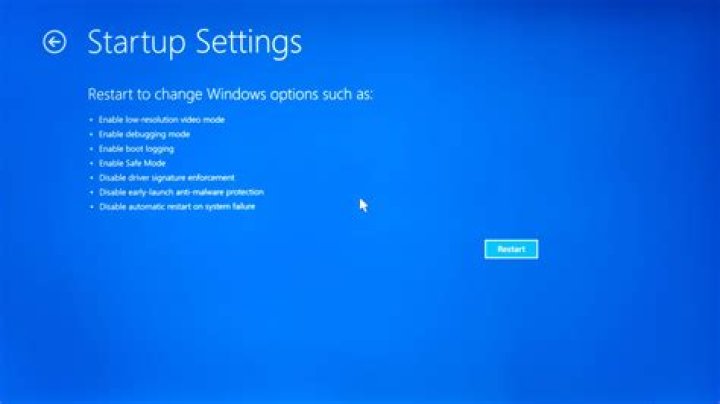
I've looked at countless questions and forums posts to no avail.
I recently rebuilt my PC (new case and cooling), and in the process I formatted both SSDs in it through GParted Live to "msdos" (which I took to mean MBR) partition scheme, both with no allocated space. One of them had a working Windows 10 installation, but I wanted to do a clean install.
My motherboard is an ASUS P6X58D Premium, which doesn't have UEFI. I cannot get it to boot the Windows 10 installer in legacy mode. There are no Secure Boot or other related options, and the boot order is properly setup (it can boot stuff).
My USB drive is a 32GB SanDisk UltraFit.
What I've tried, that doesn't boot at all:
- The official Windows 10 installation media creator → USB
- The official Windows 10 installation media creator → ISO → Rufus (MBR + NTFS 4096, either with or without "Rufus MBR BIOS ID 0x80", and "Add Fixes for for old BIOSes") → USB
- Rufus' own Download-option (gives a different ISO file size?) → same Rufus settings
What I've tried, that does boot:
- GParted Live i686 ISO → Unetbootin → USB
- The official Windows 10 installation media creator → Pendrive Linux' Universal USB Installer (NTFS option). This boots the installer, and setup can complete, but I can't boot from the hard drive by itself. I believe it's because the installer runs in UEFI mode (because UUI boots it that way), however I am unsure.
I am so perplexed, it used to be a breeze to cleanly install Windows. I've contemplating trying this:
- Install Windows 7 and upgrade it all the way to Windows 10. I only have a Windows 10 license, unsure of how that plays into things.
- Install a separate bootloader. I've had luck with Clover before, using it to UEFI-boot Windows 10. I just cannot believe it is necessary, and (perhaps stupidly) would like as clean an installation as possible, and terms like "UEFI emulation" sounds a bit hack-y and potentially problematic to me. Is this overly skeptic?
I would really like some input as to how any of you would go about this.
32 Answers
If your target system is BIOS, make sure that Target system in Rufus says BIOS (or UEFI-CSM) and not UEFI (non CSM) as it will never boot on a BIOS system otherwise. You may have to change Partition scheme to MBR to get the BIOS option for Target system.
The Target system of Rufus should always be set to the type of system you are trying to boot. If it is not set properly, your USB won't boot.
2Thanks for the feedback and input.
I did actually find EFI files on the installation drive, and booting the same installer again, and running reg query HKLM\System\CurrentControlSet\Control /v PEFirmwareType outputs 0x2 which is UEFI mode. How or why this is a thing is beyond me. My board must be doing something weird, like half-implementing UEFI, I don't know.
What ended up working was using Rufus, same settings, and manually deleting the efi folder after the USB was created. This will prevent UEFI mode altogether. This time, it booted, and installation went fine.
More in general

"Zoraya ter Beek, age 29, just died by assisted suicide in the Netherlands. She was physically healthy, but psychologically depressed. It's an abomination that an entire society would actively facilitate, even encourage, someone ending their own life because they had no hope. Th…"

