"Unable to locate package" while trying to install packages with APT
When I try to install any package through the command line, I get an error.
$ sudo apt-get install <package>
Reading package lists... Done
Building dependency tree
Reading state information... Done
E: Unable to locate package <package>
Can anyone help me on this?
67 Answers
First, check if the package actually does exist:
Go to packages.ubuntu.com with a web browser.
Scroll down to "Search package directories"
Enter the package which you're trying to install into the "Keyword" field.
Enable "Only show exact matches:"
Change the "Distribution" to the codename of the version of Ubuntu you're using, e.g. focal in Ubuntu 20.04 or it's displayed by
lsb_release -sc
If there are no results, the package you are looking for doesn't exist and the next steps will not work. It may require a third party PPA or an alternative installation method.
If results are found, the package exists and you may continue with these steps:
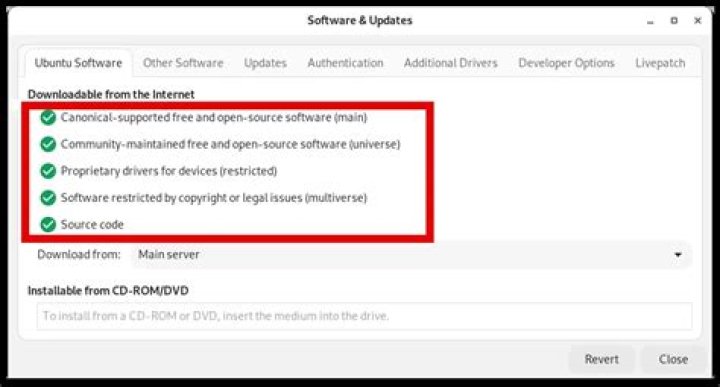
- Open Software Sources (or Software & Updates in 13.04+) by searching for it in the Dash.
- Open the "Ubuntu Software" tab.
- Ensure that the first 4 checkboxes on this tab are enabled:
Update the package lists, then test with these commands:
sudo apt update sudo apt install <TEST_PACKAGE>
There are many questions about this topic. Here I provide a basic/general answer.
When apt-get install is unable to locate a package, the package you want to install couldn't be found within repositories that you have added (those in in /etc/apt/sources.list and under /etc/apt/sources.list.d/).
The following (general) procedure helps to solve this:
Make sure you have enabled Ubuntu repositories:
To enable all repositories (
main,universe,restricted,multiverse), use the following commands:sudo add-apt-repository main sudo add-apt-repository universe sudo add-apt-repository restricted sudo add-apt-repository multiverseVisit Help for more information.
For finding PPA for more packages:
- Go to Ubuntu Package Search. (Already explained in this answer)
- If the package that you are unable to locate is from a PPA go to the PPA and check if it is available there for your release.
- For External Repositories, Visit Ubuntu Updates and search by
button. or VisitPPAs.
- Or Search in Launchpad ppa
- Find appropriate ppa according to your Ubuntu release version.
Add PPA (by command-line):
Use this command:
sudo add-apt-repository ppa:<repository-name>Visit Ubuntu community help for more information.
Don't forget to update (make apt aware of your changes):
It is essential to run this command after changing any repositories:
sudo apt-get updateSelecting best download server may help to speed up update.
Finally install the package:
sudo apt-get install <package>Refer to Package management by commandline.
Additional/Tip: you can find the correct package-name (i.e the name in the repository) using apt-cache search <package-name>.
- Related frequently asked Q&A:
- How do I resolve unmet dependencies after adding a PPA?
- What does "Package <package> has no installation candidate" mean?
Note: If package is not available on repository any how, than you have to wait until it is available (in the case of new/updated versions) or use other installation processes than apt-get e.g. compiling from source, downloading executable binary, etc.
xbmc is only available in the universe repository, only since Ubuntu 12.04 (precise). If you have an older release of Ubuntu, you'll need to upgrade or to get xbmc from another place.
If you have Ubuntu 12.04, make sure that you have turned on the universe repository. You can see what repositories you have enabled in the file /etc/apt/sources.list (and in files in the directory /etc/apt/sources.list.d). Check that this file contains a line like
deb precise universeor
deb precise main restricted universe multiverseIf you only find a line like
deb precise main restrictedand no line with universe, add universe at the end of that line, or a separate line with precise universe, as illustrated above.
If you need to modify /etc/apt/sources.list, run sudo apt-get update afterwards, then try installing again. If the package is still not found, post the complete content of /etc/apt/sources.list and the output of sudo apt-get update.
Fresh Ubuntu installation?
Many times just updating the package lists from all repositories and PPA's does the trick:
sudo apt-get updateThis should be the first thing to do.
If this does not work you need search for the repository or PPA which contains the package you are after, add it, and run sudo apt-get update again. Steps for the process are well explained on the other answers on this page.
I'm new to Ubuntu but i'm writing this as I discovered some solutions to avoid this "Unable to Locate Package" errors. There are three circumstances where this might occur to a shock.
- After installing Ubuntu if you don't update it followed by Upgrades, This might occur.
- If there are plenty of software updates to occur in future, make sure all important security updates/recommended updates are turned off by typing "Update Manager" on pressing Alt+F2.
- Issue One and Two can happen even after updating or clearing all updates. But the eternal solution is:
Try point 1 & 2, then type
sudo apt-get killmanager, if not working no problem proceed to typesudo apt-get update, then typesudo apt-get upgrade.
Now you should be able to install any software through Terminal.
1In the case where tried to install a file:
sudo apt-get install libstdc++.so.6instead of a package. You get the error message:
E: Unable to locate package libstdc++.so.6
E: Couldn't find any package by regex 'libstdc++.so.6'
because you tried to install a file libstdc++.so.6 that you can't install, because it is located in a debian package.
You can use apt-file to search for the package that contains that file. To install it, type:
sudo apt-get install apt-fileThen you have to update the index.
sudo apt-file updateAfter that, you can search for the package which contains the file libstdc++.so.6:
sudo apt-file find libstdc++.so.6Then you find a lot packages that contains the searched file. For this example I paste only one search result:
libstdc++6: /usr/lib/x86_64-linux-gnu/libstdc++.so.6Then you can install the needed package libstdc++6:
sudo apt-get install libstdc++6you must supply either full path or relative path to reach the xxx.deb file
sudo apt-get install google-chrome-stable_current_amd64.deb # bad way
sudo apt-get install ./google-chrome-stable_current_amd64.deb # proper way
notice I supply the relative path to reach the xxx.deb file as in ./xxx.deb this is an intentional security measure to prevent sudo from installing potentially rogue xxx.deb from the PATH variable


