Unity greeter background not changing for users automatically after upgrade
I have recently upgraded from 11.10 to 12.04. Normal upgrade, no new installation. In 11.10 I was using Simple LightDM Manager tool to set a custom wallpaper on the login screen. This tool unfortunately doesn't seem to do anything since I have upgraded. I have also heard that 12.04 is suppose to have this feature (changing login wallpaper per different user) by default. I have searched in settings but unfortunately in vain.
So, to keep it short, could somebody direct me to the option(s) page where I can make the desired changes.
13 Answers
If I understand you correctly, you want the desktop background for the login screen to change depending on which user is highlighted.
Yes, it does do this by default (it sets it to the one the user uses). The caveat is that since you upgraded, it doesn't automatically set this for existing users.
Simply change the wallpaper for each user, then change it back to what you had before. This will update the login screen to show the correct wallpapers. I had to do this with network users.
2Recently I ran into the same problem and discovered there are two key settings that need to be enabled for this to work.
- Make sure your wallpaper is readable by lightdm.
- Enable unity-greeter background drawing. Run the command
gsettings set com.canonical.unity-greeter draw-user-backgrounds true. - Enable the background plugin from the accounts daemon. Run the command
gsettings set org.gnome.settings-daemon.plugins.background active true. (This will have theaccounts-daemonprocess update the/var/lib/AccountsService/users/johndoefile with John Doe's wallpaper location.)
I had to update these commands a couple of times for my wallpaper to get written to the respective file and then unity-greeter started showing my background again :)
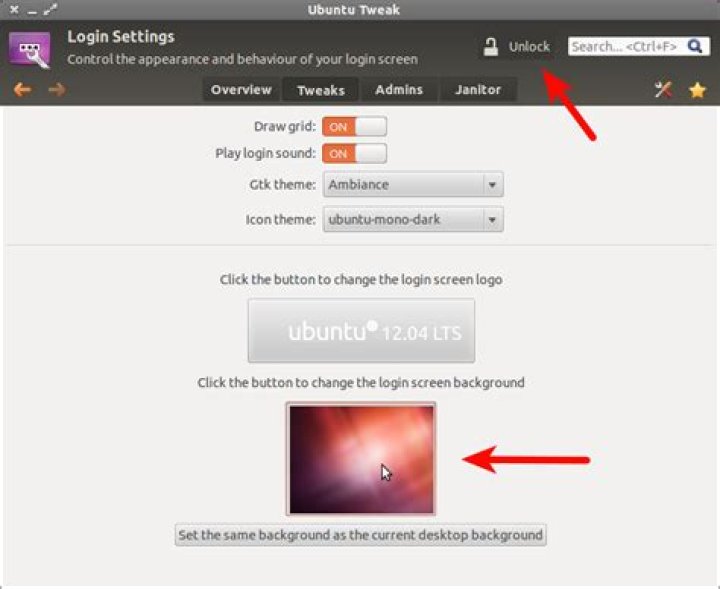
2You can customize your login screen with Ubuntu Tweak.
Install Ubuntu Tweak:
Hit Alt+Ctrl+T to open terminal and run following commands:
sudo add-apt-repository ppa:tualatrix/ppa
sudo apt-get update
sudo apt-get install ubuntu-tweak
How to Change Login Wallpaper?
- Once installed, Hit Super key (Windows key) to open Unity dash and search for "ubuntu tweak" and open it.
- Navigate to "Tweaks" tab, Under Startup click on "Login Settings"
- Click on "Unlock" button beside the search bar, Enter your root password to unlock settings. To change the login screen background click on thumbnail in the bottom and select your desired wallpaper. Make sure the selected wallpaper is in your home directory.
- To set your current wallpaper as your login screen background, Click on the button right beneath the thumbnail.
To Remove Ubuntu Tweak Run the following commands in terminal:
sudo apt-get autoremove --purge ubuntu-tweak
sudo add-apt-repository --remove ppa:tualatrix/ppa
2


