Upgrade from 16.04 to 18.04 failed
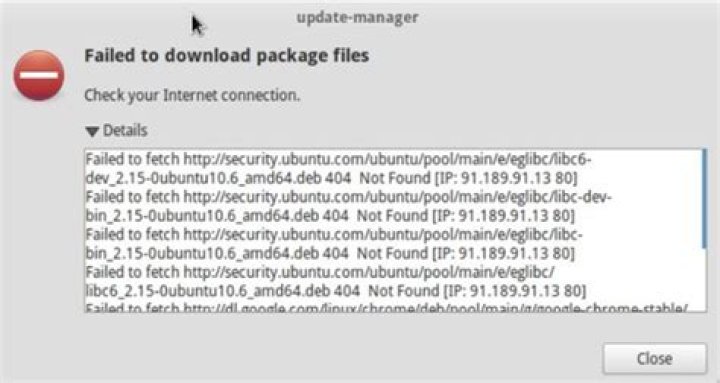
A notification came up:
Cannot upgrade secure boot enforcement policy due to unsigned kernels
Your system has UEFI secure boot enabled firmware, and the following kernels present on your system are unsigned:
4.4.0-134-generic
The kernels cannot be verified under secure boot. To ensure your system remains bootable, GRUB will not be upgraded on your disk until these kernels are removed or replaced with signed kernels.
and the upgrade has stopped. Can someone please tell me what to do?
3 Answers
You could turn off secure boot in your BIOS/UEFI Settings and let the unsigned packages upgrade, or install the linux-signed-generic, shim-signed, grub-efi-amd64-signed, and fwupdate-signed on your 16.04 system and upgrade with secure boot.
The upgrade should work if you turn off secure boot and try again. To install the packages, start a terminal (Ctrl + Alt + t ) and type:
sudo apt-get install linux-signed-generic shim-signed grub-efi-amd64-signed fwupdate-signedRunning uname -r should state 18.04 after a reboot. If reboot fails, go into recovery mode and repair install (dpkg) then boot normally.
After booting, install linux-generic which should install the latest (4.15) kernel Reboot and at the grub menu, select advanced and boot into the 4.15 kernel. Then run sudo apt-get install linux-signed-generic shim-signed grub-efi-amd64-signed fwupdate-signed - which should now install without errors
Then sudo apt update && sudo apt upgrade and you should be good to go.
I also encountered this problem, and I solved it recently by signing the kernel.
Warning: replacing the unsigned kernel is dangers; any tiny mistakes may cause kernel panic. Please be aware of what you are doing.
Acknowledgment
Thanks to following two posts I leaned how to sign a kernel to solve this problem, you can refer to them for more details.
My notes for solving this problem are listed below.
Fixing grub error about unsigned kernel in Ubuntu
ERROR INFO:
Cannot upgrade Secure Boot enforcement policy due to unsigned kernels
Your system has UEFI Secure Boot enabled in firmware, and the following kernels present on your system are unsigned: 4.18.20-041820-generic
These kernels cannot be verified under Secure Boot. To ensure your system remains bootable, GRUB will not be upgraded on your disk until these kernels are removed or replaced with signed kernels.
Certificates in shim
- cd to a directory you want to save the Certificates
vim openssl.cnfto create a new file- input following contents in the file (modify the req_distinguished_name info if you like, it is ok to left it as it is).
# This definition stops the following lines choking if HOME isn't
# defined.
HOME = .
RANDFILE = $ENV::HOME/.rnd
[ req ]
distinguished_name = req_distinguished_name
x509_extensions = v3
string_mask = utf8only
prompt = no
[ req_distinguished_name ]
countryName = CA
stateOrProvinceName = Quebec
localityName = Montreal
0.organizationName = cyphermox
commonName = Secure Boot Signing
emailAddress =
[ v3 ]
subjectKeyIdentifier = hash
authorityKeyIdentifier = keyid:always,issuer
basicConstraints = critical,CA:FALSE
extendedKeyUsage = codeSigning,1.3.6.1.4.1.311.10.3.6
nsComment = "OpenSSL Generated Certificate"- creat the private and public keys
openssl req -config ./openssl.cnf \ -new -x509 -newkey rsa:2048 \ -nodes -days 36500 -outform DER \ -keyout "MOK.priv" \ -out "MOK.der"Enrolling the key
To enroll a key, use the mokutil command:
sudo mokutil --import MOK.derFollow the prompts to enter a password that will be used to make sure you really do want to enroll the key in a minute.
Once this is done, reboot. Just before loading GRUB, shim will show a blue screen (which is actually another piece of the shim project called “MokManager”). use that screen to select “Enroll MOK” and follow the menus to finish the enrolling process. You can also look at some of the properties of the key you’re trying to add, just to make sure it’s indeed the right one using “View key”. MokManager will ask you for the password we typed in earlier when running mokutil; and will save the key, and we’ll reboot again.
sign a custom kernel you want to have loaded by shim
- convert the certificate we created earlier into PEM:
openssl x509 -in MOK.der -inform DER -outform PEM -out MOK.pem- back up the original vmlinuz file (e.g., vmlinuz-4.18.5-041805-generic)
sudo cp /boot/vmlinuz-4.18.5-041805-generic ./- sign the kernel with following command (modify the kernel name accordingly)
sudo sbsign --key MOK.priv --cert MOK.pem /boot/vmlinuz-4.18.5-041805-generic --output vmlinuz-4.18.5-041805-generic.signed- move the signed kernel to the
/boot/directory (and make sure the signed kernel has the same name as the original one)
sudo mv vmlinuz-4.18.5-041805-generic.signed /boot/vmlinuz-4.18.5-041805-generic- rebuild grub menus with following command
sudo dpkg-reconfigure grub-pcThis command causes grub to rebuild its menus. Make sure for each grub menu item (especially the signed one), there is a linux ... line and a initrd .... line. Otherwise you may encounter "kernel panic" next time you reboot the system.
Rebuilding grub menu is probably not strictly necessary because I didn’t actually add any new kernels to /boot/, but it was worth running to make sure there weren’t any errors.
- This fixes the installation of the package that was broken. If all goes according to plan, it should no longer show an error.
sudo dpkg --configure grub-efi-amd64-signedMore in general

"Zoraya ter Beek, age 29, just died by assisted suicide in the Netherlands. She was physically healthy, but psychologically depressed. It's an abomination that an entire society would actively facilitate, even encourage, someone ending their own life because they had no hope. Th…"

