What is the Linux command to find out hardware info?
I need to find out hardware information for the below items under Linux:
- CPU (and cores)
- CPU speed
- Memory
- Hard disks
- OS version
Any advice?
111 Answers
From Linux Commands - A practical reference:
Show kernel version and system architecture
uname -aShow name and version of distribution
head -n1 /etc/issueShow all partitions registered on the system
cat /proc/partitionsShow RAM total seen by the system
grep MemTotal /proc/meminfoShow CPU(s) info
grep "model name" /proc/cpuinfoShow info about disk sda
hdparm -i /dev/sdaTry lshw
It will suggest you run it as root, so try
sudo lshwHere is a list of commands to check hardware on Linux. Note that not all commands are available on all distributions. It is better to launch then as root (or via sudo) to get all the information.
Command: lscpu
- List available cpus and their caracteristics
- Not available on older distribution
Command: lshal
- Require HAL (Hardware Abstraction Layer) to be installed
- List all hardware visible by HAL
Command: lshw
- Available on Ubuntu based distributions by default, and Debian in the main repo
- Available in the Fedora repositories
- Uses many inputs to detect all hardware: Kernel, HAL, DMI, etc.
- As a neat ‘-html’ switch that generates hardware reports
- Check more on this page
Command: lspci
- Standard command
- List all hardware connected to the PCI bus as detected by the kernel
Command: lsusb
- Standard command
- List all hardware connected to the USB buses as detected by the kernel
Command: dmidecode
- Standard command
- Get the source information from the DMI (a kind of BIOS interface)
- List all hardware as reported by the DMI interface
I am a co-developer of a utility that is making its way into several distributions. The tool is called inxi. It is a bash script that does what all the other answers here suggest in one easy command. Check it out.
To use it, simply go to a terminal and type 'inxi -F' and it will display a full (-F) system information output. 'inxi -h' will show more options. It was originally made for IRC troubleshooting, so it works in almost every IRC client (and comes bundled in some).
Here is a link to various Linux commands for what you want:
Specifically, you're looking for commands like:
cat /proc/cpuinfo
free -m
cat /proc/version
And, just to add my two cents worth, I would also try
hwinfoBefore using the full comand, you might perhaps try the short version,
hwinfo --shortwhich might already provide the info you are searching for. The fll version is very rich in details, so it is probably best called with
hwinfo | moreAnd, by the way, a convenient condensed form of the info provided by lshw can be obtained by means of
sudo lshw -businfowith easily readable output:
Bus info Device Class Description
======================================================== system PORTEGE R930 (PT331E) bus PORTEGE R930 memory 128KiB BIOS memory 6GiB System Memory memory 4GiB SODIMM DDR3 Synchronous 1600 MHz (0,6 ns) memory 2GiB SODIMM DDR3 Synchronous 1600 MHz (0,6 ns)
cpu@0 processor Intel(R) Core(TM) i7-3520M CPU @ 2.90GHz memory 32KiB L1 cache memory 256KiB L2 cache memory 4MiB L3 cache memory 32KiB L1 cache
pci@0000:00:00.0 bridge 3rd Gen Core processor DRAM Controller
pci@0000:00:02.0 display 3rd Gen Core processor Graphics Controller
pci@0000:00:14.0 bus 7 Series/C210 Series Chipset Family USB xHCI Host Controller
pci@0000:00:16.0 communication 7 Series/C210 Series Chipset Family MEI Controller #1
pci@0000:00:16.3 communication 7 Series/C210 Series Chipset Family KT Controller
pci@0000:00:19.0 eth0 network 82579LM Gigabit Network Connection
pci@0000:00:1a.0 bus 7 Series/C210 Series Chipset Family USB Enhanced Host Controller #2
pci@0000:00:1b.0 multimedia 7 Series/C210 Series Chipset Family High Definition Audio Controller
pci@0000:00:1c.0 bridge 7 Series/C210 Series Chipset Family PCI Express Root Port 1
pci@0000:01:00.0 generic MMC/SD Host Controller
pci@0000:00:1c.1 bridge 7 Series/C210 Series Chipset Family PCI Express Root Port 2
pci@0000:00:1c.2 bridge 7 Series/C210 Series Chipset Family PCI Express Root Port 3
pci@0000:04:00.0 wlan0 network Centrino Advanced-N 6235
pci@0000:00:1c.5 bridge 7 Series/C210 Series Chipset Family PCI Express Root Port 6
pci@0000:00:1d.0 bus 7 Series/C210 Series Chipset Family USB Enhanced Host Controller #1
pci@0000:00:1f.0 bridge QM77 Express Chipset LPC Controller
pci@0000:00:1f.2 storage 7 Series Chipset Family 6-port SATA Controller [AHCI mode] scsi0 storage
scsi@0:0.0.0 /dev/sda disk 256GB TOSHIBA THNSNF25
scsi@0:0.0.0,1 /dev/sda1 volume 27GiB EXT4 volume
scsi@0:0.0.0,2 /dev/sda2 volume 210GiB Extended partition /dev/sda5 volume 5722MiB Linux swap / Solaris partition /dev/sda6 volume 204GiB Linux filesystem partition scsi2 storage
scsi@2:0.0.0 /dev/cdrom disk DVD-RAM UJ8C2 power Lithium Ion Battery power wwan0 network Ethernet interface
There is also a graphical version of lshw, called lshw-gtk:
sudo lshw-gtk &Depeding on the specific distro you are on, most of these commands may need to be installed (apt-get install, yum, pacman, ...)
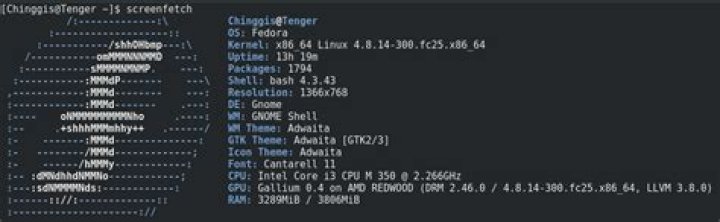
There is also popular non-standard script (requires installation) called screenFetch:
screenFetch is a "Bash Screenshot Information Tool". This handy Bash script can be used to generate one of those nifty terminal theme information + ASCII distribution logos you see in everyone's screenshots nowadays. It will auto-detect your distribution and display an ASCII version of that distribution's logo and some valuable information to the right. There are options to specify no ASCII art, colors, taking a screenshot upon displaying info, and even customizing the screenshot command! This script is very easy to add to and can easily be extended.
If you want lots of information about all of the devices connected to your machine over the PCI (or PCI-Express) bus then type lspci -vvknnqq
If you want information about your disk partitioning then type sudo fdisk -l /dev/sda
You can also use dmidecode which will provide description of the systemâs hardware components.
If you use puppet to manage your infrastructure, use facter
facter processorcount sp_number_processors sp_current_processor_speed memorytotal operatingsystem osfamily operatingsystemrelease
processorcount => 4
sp_current_processor_speed => 2.5 GHz
sp_number_processors => 2
memorytotal => 8.00 GB
osfamily => RedHat
operatingsystem => CentOS
operatingsystemrelease => 6.5
You can even output as yaml or json
facter osfamily operatingsystem --json
{"osfamily":"Darwin","operatingsystem":"Darwin"}
facter osfamily operatingsystem --yaml
osfamily: Darwin
operatingsystem: Darwin
Chef has a similar tool called ohai
The hw-probe tool collects outputs of all hardware-related listers (hwinfo, lspci, lscpu, hdparm, smartctl, dmidecode, etc.) at once.


