Windows 10 bios how to enable booting from USB device?
does someone know how to solve the following problem?
- I like to boot from a bootable USB device on Windows 10
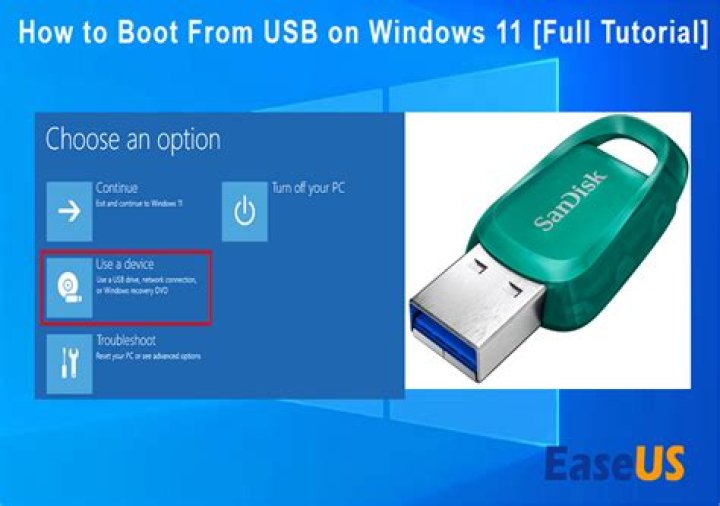
- When clicking on advanced restart options and selecting boot from USB, it says that the system does not have any USB boot option
- I tried to look into the bios settings (tab called "boot"). But in bios there is just one available boot option listed under "EFI", the regular hard drive ("windows boot manager")
- The "USB Boot" option is set to enabled though
- "boot mode" option is set to "UEFI" and it is greyed out, I cannot edit it
- The "secure boot" option is set to enabled, if relevant
How can I successfully force it to boot from USB?
Thank you
32 Answers
First of all, you need to accurately setup your USB drive to be able to boot. You can do this with Rufus utility . It has compatibility options to UEFI/BIOS systems. Read the documentation. Second, try to format the drive using FAT32 or FAT16 file system. That could help if BIOS/UEFI is preventing NTFS formated drives from booting. Also, it helps if you learn the quick boot selection key of your system ( Usually runs from F9 to F11 but can vary)
There are a multitude of reasons why, but assuming your drive is bootable and working it may be because your USB is formatted incorrectly, and it may need to boot through a legacy option.
In order to select this, disable secure boot and enable legacy options. (Depending on the model or brand this may be multiple settings)
If the option does not appear in the boot list you may need to restart and reopen the uefi menu.
If this is still not working try flashing(updating) the bios to the latest version and make sure your USB ports are enabled.


