Windows WSL Ubuntu sees wrong permissions on files in mounted disk
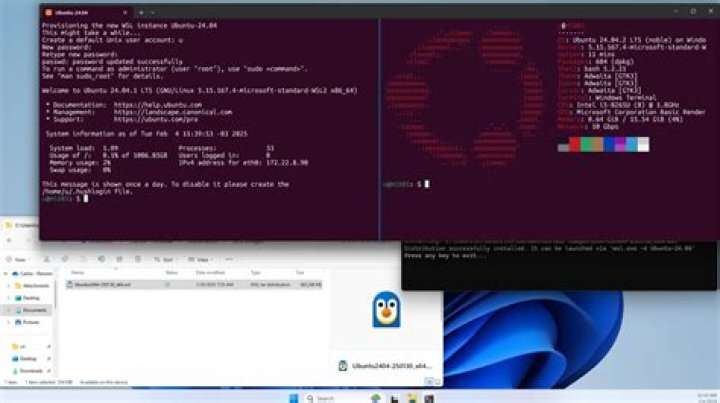
I recently installed WSL on my Win 10 (Version 10.0.17134.228) and I'm trying to access my files on a disk mounted on windows from linux.
In my PC I have 2 HD:
- First Disk: A single partition where windows is installed (C:/ in Windows)
- Second Disk: It has 2 partitions
- A partition which contains Ubuntu (for dual boot)
- An NTFS partition which just contains data (D:/ in Windows)
When I work from windows or Ubuntu (the dual boot one) I access the data from the D:/ partition.
Now I wanted to access the data in the D:/ partition from WSL, but it tells me I don't have permissions
When I ls in the directory I see
mypc@DESKTOP-1CEE3H9:/$ ls -la /mnt/d/mypath/child/
total 36
drwxrwxrwx 1 myuser myuser 4096 Jun 2 19:54 .
drwxrwxrwx 1 myuser myuser 4096 Aug 18 00:52 ..
---------- 1 myuser myuser 1884 Dec 27 2017 myfile1
d--x--x--x 1 myuser myuser 4096 Jun 24 23:29 myfolder1
And in the parent path I see
mypc@DESKTOP-1CEE3H9:/$ ls -la /mnt/d/mypath/
total 180
drwxrwxrwx 1 myuser myuser 4096 May 21 2017 .
drwxrwxrwx 1 myuser myuser 4096 Aug 24 22:59 ..
drwxrwxrwx 1 myuser myuser 4096 Aug 13 2015 myfolder2
d--x--x--x 1 myuser myuser 4096 Sep 24 2015 myfolder3
-rwxrwxrwx 1 myuser myuser 268 Jan 19 2015 myfile2
In contrast, in the C:/ partition I see
mypc@DESKTOP-1CEE3H9:/$ ls -la /mnt/c/Users/MyUser/Desktop/
total 505276
drwxrwxrwx 1 myuser myuser 512 Aug 20 23:12 .
drwxrwxrwx 1 myuser myuser 512 Aug 18 01:07 ..
-rwxrwxrwx 1 myuser myuser 1604 Jun 17 15:47 myfile3
drwxrwxrwx 1 myuser myuser 512 Mar 31 13:16 myfolder4
On windows I can access all of those files.
In WSL I can access myfolder2, myfolder4 and I can read myfile2, myfile3.
I can not access myfile1, myfolder1, myfolder3.
My partitions are
C: on /mnt/c type drvfs (rw,noatime,uid=1000,gid=1000)
D: on /mnt/d type drvfs (rw,noatime,uid=1000,gid=1000)
I don't understand why the permissions on the files are different on the disk. Might it be because I create/edit some of them from Ubuntu (dual boot) and some from Windows?
How can I fix the problem so that I can access the files?
I did not try chmod the disk because it is big, I don't want to risk breaking any file and it sounds to me like that would fix the symptoms and not the root cause of the permission problems.
Thanks
Edit
Following Biswapriyo comment I looked better into two files which I can and cannot access.
I checked the file Properties, and under the Detail tab I saw that the owner of the 2 files is different:
- The file I can access has owner
DESKTOP-1CEE3H9\MyUser - The file I cannot access has owner
Administrators
I also checked another file I can access, and this one has as owner a long sequence of numbers and letters.
I tried changing the owner of one file from Administrators to DESKTOP-1CEE3H9\MyUser and it looks like I now see the right permissions in WSL.
Could this be related?
43 Answers
I noticed the owner of the file on Windows was "Administrators".
I changed that to be my user following this link and WSL started giving the appropriate permissions.
To summarize the steps here:
Left click -> "Properties" Option -> "Security" Tab -> "Advanced" Button -> "Change" button next to "Owner" -> In the input field write your user name and press "Check Names" button
Then press Ok until you close all the windows
I'm still not sure why I could access them in Windows but not on WSL.
1Workaround:
Type sudo chmod a+rwx /path/to/file into the terminal, replacing /path/to/file with the file you want to give permissions to everyone for, and press Enter
You can also use the command sudo chmod -R a+rwx /path/to/folder to give permissions to a folder and every file and folder inside it. Omit the x from either command if you don’t want the files to be executable.
source:
I don't have any "Security" tab in my case, but I think I figured out the problem.
In my case, I wanted to add a repository through GitHub Desktop and when prompted for the location I just created a folder without thinking. That was it, permissions were screwed up.
In short, don't create / modify anything inside the Linux file system through Windows, use only the Linux terminal.
You can always add the repository to your software of choice afterwards.
More in general

"Zoraya ter Beek, age 29, just died by assisted suicide in the Netherlands. She was physically healthy, but psychologically depressed. It's an abomination that an entire society would actively facilitate, even encourage, someone ending their own life because they had no hope. Th…"

