xfreerdp redirect usb webcam
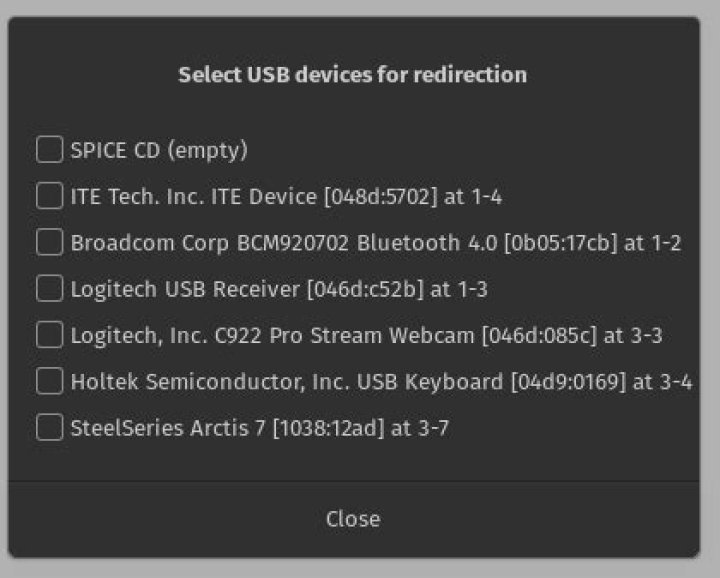
I'm trying to use xfreerdp to connect to a windows VM, and I need to forward the local webcam on my Ubuntu box.
My Ubuntu distro has xfreerdp "2.2.0 (n/a)"
I've found some conflicting documentation, but I believe I'm using the most recent (dated 2020 at least).
I have tried a redirection like this:
xfreerdp /usb:id,dev:1edb:be56 <other options...>which is not rejected (as many malformed variants are) however, the windows vm does not recognize any camera being available.
Can anyone tell me what's wrong?
Or can anyone suggest how I might start to debug this? I admit I know very little about the windows side of this equation.
TIA
1 Answer
I just found a solution elsewhere to just this question that worked for myself. As ist happened, xfreerdp indeed tried to share the USB device, but the Windows 10 Host was not configured to accept it.
There are a couple of policy entries that configure this behaviour.
After setting the entries as described below I now have an audio device and a imaging device for my shared webcam.
The camera does NOT show up amongs cameras, but it is usable in "Teams" on the remote host. Performance is not that great, but even the Logitech settings app does recognize it and I can configure the behaviour. Probably the double transport of video data from the client to the host and back through the RDP session to make it available in the session is not the greatest idea.
Run gpedit.msc on the target VM (the target windows 10 Virtual Machine) to start the Group Policy Editor. gpedit.msc can be typed in from a run dialog (use WinKey+R) if you have administrator access, or start an elevated CMD.EXE and type gpedit.msc from the command line.
Locate the item *Computer Configuration \ Administrative Templates
Windows Components \ Remote Desktop Services \ Remote Desktop Session Host \ Device and Resource Redirection* Do not allowsupported Plug and Play device redirection from the treeview of the Group Policy Editor.set this item to Disabled.
Run gpupdate /force from an elevated command prompt.
At least disconnect RDP session and connect again, if this does not work reboot target VM.


